
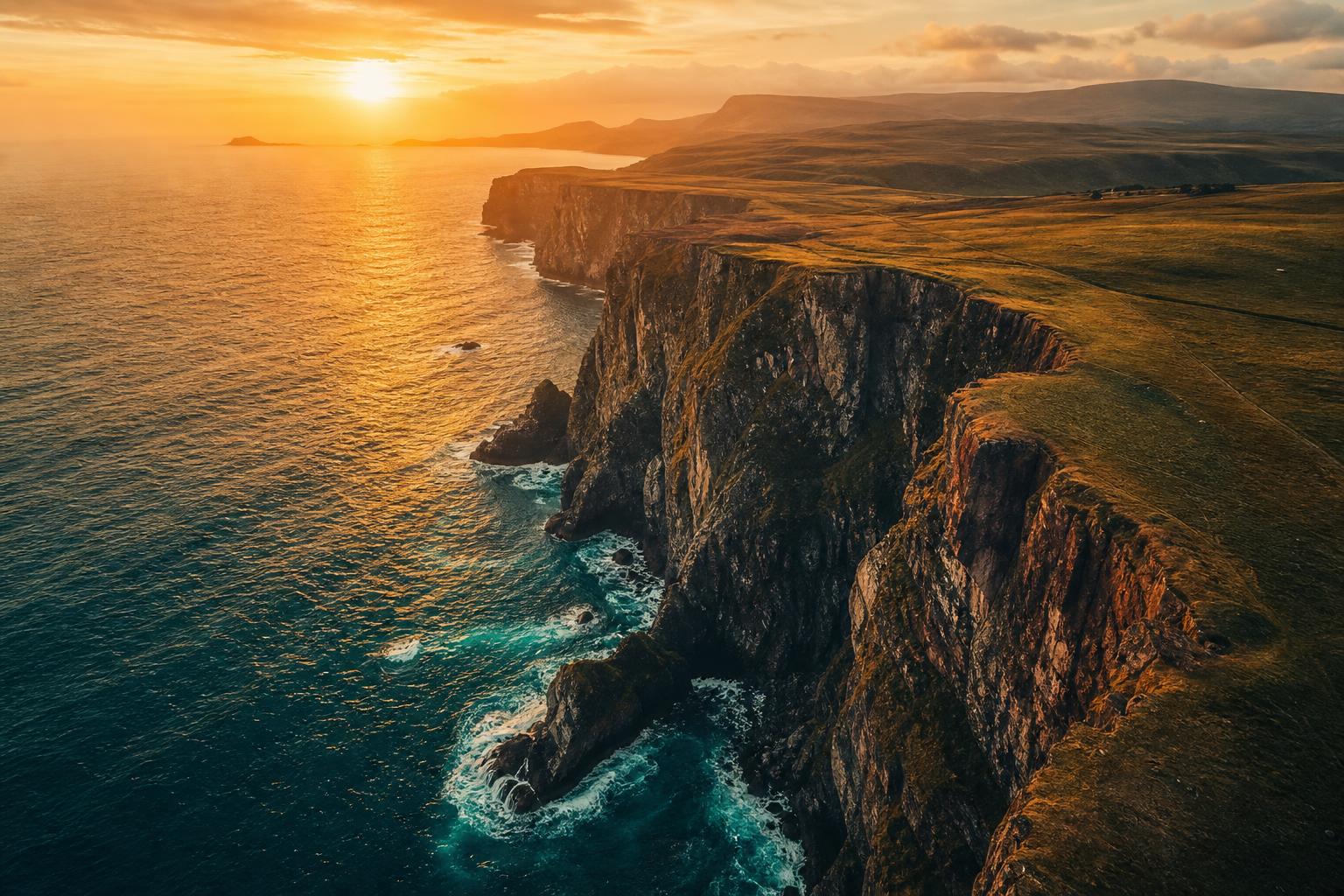
If you fly a DJI drone for client work, content, or your own short films, you’ve already noticed: drone footage looks different from ground footage. Skies dominate the frame. The horizon is always exposed. Greens turn weirdly muddy when you grade them like you would a human-scale shot. And shooting in D-Log on a Mavic, Air, or Inspire just makes all of that more obvious.
D-Log is the right tool for drone work, but only if you grade it properly. Here’s the workflow I use on real projects.
What D-Log actually does
D-Log is DJI’s logarithmic color profile, available on the Mavic 3 / Mavic 4, Air 3, Inspire 2 / 3, and most Cinema-series drones. It captures more dynamic range than the default Normal or D-Cinelike profile — roughly 12 stops vs 8 — so you can recover detail in bright skies and shaded ground in the same shot.
The trade-off: D-Log footage looks flat and slightly green straight out of camera. That’s the cost of the extra range. You absolutely must convert and grade it before it’s deliverable.
You enable D-Log in the DJI Fly or DJI Pilot 2 app under Color → D-Log or D-Log M. Pair it with 4K, 50 Mbps minimum, ideally 100 Mbps if your drone supports it. Lower bitrates introduce banding in skies that no amount of grading can fix.
Step 1: Convert from D-Log to Rec.709
Just like Apple Log or Sony S-Log, D-Log needs a conversion LUT before any creative work. DJI provides free official conversion LUTs on their support site — search for “DJI Color Profile LUT pack” and grab the one matching your drone model. The Mavic 3 uses a different conversion LUT than the Air 3, so check the file name matches your camera.
In DaVinci Resolve:
- Drop your drone clip on the timeline
- Open the Color page
- Node 1, right-click → 3D LUT → import the DJI D-Log to Rec.709 conversion LUT for your specific drone
- Footage should now look natural — proper sky color, neutral skin, recoverable shadow detail
In Premiere Pro:
- Lumetri Color → Creative tab → Look dropdown → Browse → load DJI’s conversion LUT
If the converted footage looks too warm or too green, you have the wrong conversion LUT for your drone model. Don’t try to fix it with adjustments — find the right LUT.
Step 2: Apply a creative LUT for the cinematic look
Once converted to Rec.709, your footage is ready for creative grading. This is where you turn neutral drone footage into something that fits the look of your edit.
The node stack:
- Node 1: DJI D-Log to Rec.709 conversion LUT (specific to your drone model)
- Node 2: Creative LUT (e.g. our DRONE LUT pack, or any cinematic LUT designed for Rec.709)
- Node 3: Per-shot tweaks — sky saturation, ground contrast, slight tint
Our DRONE LUT pack is built specifically for this workflow: 20 D-Log conversion LUTs (in case you want to skip the DJI conversion and go straight from D-Log to a graded look), 11 REC.709 creative LUTs, and a clean D-Log to REC.709 conversion LUT for when you just want neutral starting point. The conversion LUTs in our pack are tuned for natural sky tones — they don’t push blues into cyan the way some generic conversion LUTs do.
Step 3: Handle the things ground LUTs get wrong
Most creative LUTs are designed for ground-level footage with human subjects. When you slap them on aerial footage, a few things break.
Skies turn cyan or banded. Many cinematic LUTs push the blue channel hard for moody indoor scenes. On a big sky shot, that turns natural blue into hyper-saturated cyan that looks fake. Fix it with HSL secondary (Resolve) or Lumetri color wheel (Premiere) — pull the blue saturation down 15–25% on the sky region only.
Greens go muddy. Trees and grass from 100m up look different than at eye level. The LUT was probably built around a closer green, so aerial green often looks dirty after grading. Lift the green saturation slightly and warm the green hue by 5–10 degrees.
Ground texture flattens. Drone footage loses microcontrast at altitude. Most creative LUTs add additional contrast on top, which can crush the texture entirely. Drop contrast on the lift/gamma/gain wheels, not on the main curve.
Water becomes oversaturated. If you’re shooting over the sea or a lake, the LUT will often push cyan into the water that doesn’t belong. Same fix as skies — pull blue saturation down in HSL secondary.
Step 4: Smooth motion in the grade
Drone footage has fast moves — push-ins, reveals, orbits. Quick exposure changes during these moves create flicker that’s invisible in raw D-Log but obvious after grading. Two fixes:
- Match exposure across the move. If the drone pushed from a shaded area into bright sun, the original exposure ramp is captured. Use a keyframed exposure adjustment to flatten it before applying the creative LUT, then apply the LUT to the now-consistent footage.
- Enable temporal NR on shots with sky/sun gradients. Even at 50 Mbps, banding shows up in big gradients after grading. A light temporal noise reduction (Resolve’s Temporal NR at 2 frames, blend 50%) cleans this up.
Step 5: Export at the right settings
For YouTube delivery: 4K H.264 at 50 Mbps minimum. Drone footage benefits noticeably from 80–100 Mbps if your audience can play it back.
For client deliverables or stock footage: ProRes 422 HQ or DNxHR HQX. Don’t deliver H.264 master files for paid work — the compression artifacts on big blue skies are a giveaway that the file was bounced through a compressor.
For Instagram and TikTok: 1080p H.264 at 25 Mbps. The platform compresses again on upload, so going higher than 25 Mbps is wasted bytes.
The two biggest mistakes drone pilots make in grading
Mistake 1: Skipping the conversion LUT. Applying a creative LUT directly to D-Log produces ugly, crushed results. Always convert first.
Mistake 2: Using the same LUT across drones. The Mavic 3’s color science is different from the Air 3’s. A LUT tuned for one will introduce a cast on the other. If you fly multiple drones, match the conversion LUT to each, then run the same creative LUT on top.
The takeaway
D-Log is a workhorse for drone work because it captures the dynamic range you need to keep sky AND ground detail in the same frame. But it’s a means to an end — the deliverable is graded Rec.709 footage that looks intentional, not flat Log that looks broken.
Convert with DJI’s official conversion LUT (or our DRONE pack’s drone-tuned alternative), apply a creative LUT designed for Rec.709, fix the sky and green issues that aerial footage introduces, smooth motion, export at quality. That’s the entire pipeline.
If you want the LUTs built for this specific workflow: our DRONE LUT pack is 32 LUTs tuned for D-Log and Rec.709 drone footage. Or the Cinematic Mega Bundle includes DRONE plus CINEMA and DARK DREAMS for $89 — useful if you’re cutting drone footage into edits that also have ground-shot material.