
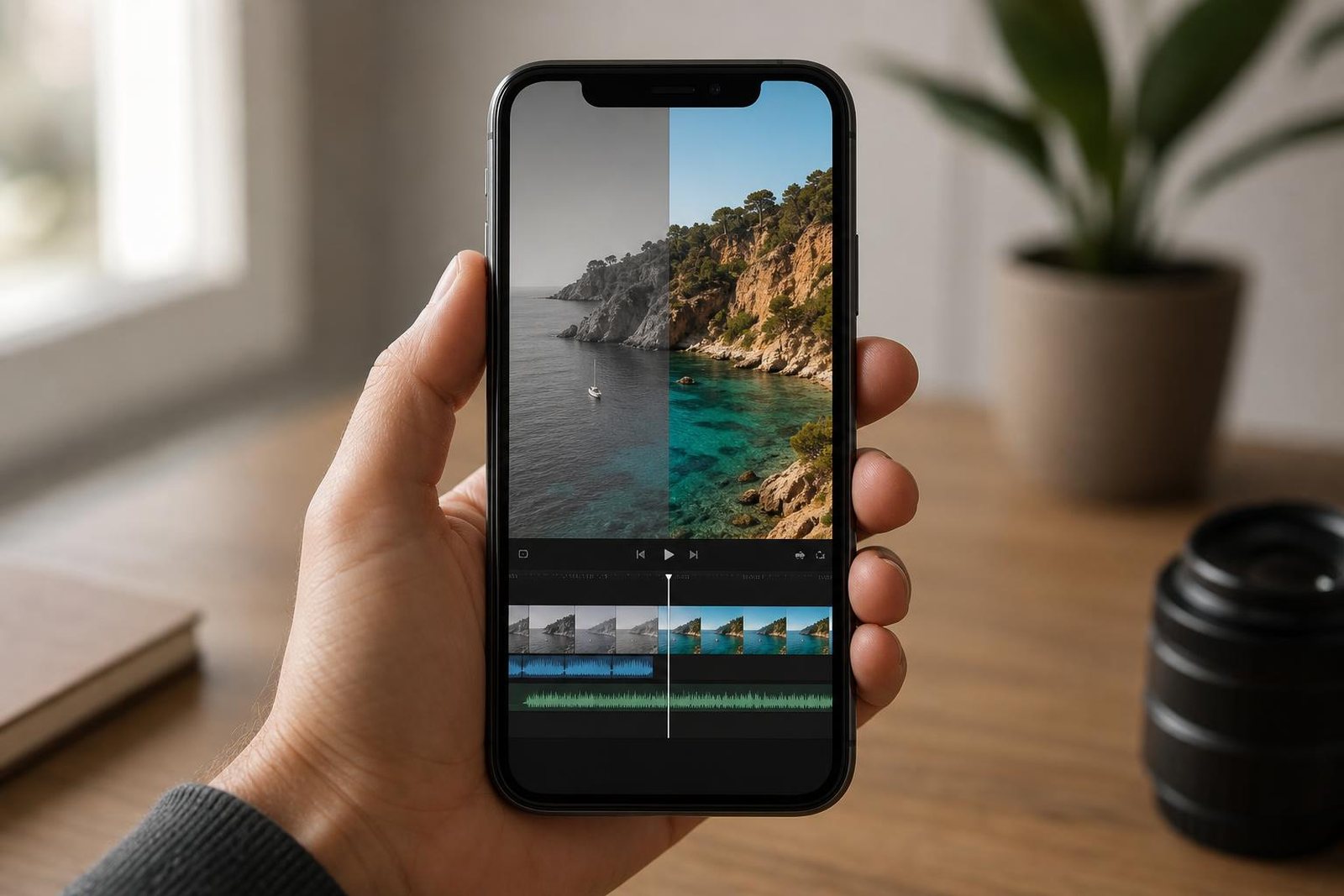
The short answer: you do not need a computer to color Log footage from your iPhone. Install VN Video Editor, which is free and has no watermark, import a LUT file, and apply it to the clip. The whole thing takes about a minute. The one thing to get right is which LUT you import: a conversion LUT turns the flat gray Log image into correct color, and a look LUT does the conversion and the grade in a single file. Our conversion LUTs are free, further down this page.
Why the free route is VN and not CapCut
Most people try CapCut first, because it is already on the phone. It does not work. The CapCut mobile app only has its own built-in filters and cannot load a custom LUT file at all. The import button exists in CapCut for desktop, not in the app. VN Video Editor can, it is free, it exports without a watermark, and the LUT ends up as a normal filter you tap on. That is the whole trick.
The result is a Log clip graded on the phone, from the flat gray recording to something you would actually post, without ever touching a laptop.
Do I need to convert first, or can one file do it all?
Log footage is a translation problem before it is a taste problem. The phone records the widest possible dynamic range instead of a finished image, so the clip comes out gray and washed out. A conversion LUT maps that back to Rec.709, the color space every screen expects. That gives you correct contrast, saturation and skin tones, and it stops there. The look, the part that makes the shot yours, is a second decision.
On a phone you want to do that in one file. A look LUT with the conversion built in takes the clip from flat to finished in a single tap, with no stacking and no second pass. That is how the IPHONE CINEMA looks are built, and it is why they show up as ordinary filters in VN.
Skip the two steps: one LUT from flat Log to finished
See it in motion
This skips the conversion entirely. IPHONE CINEMA is ten graded looks built and tested on real iPhone footage, and every look has the Apple Log 2 conversion built into the file. You do not convert first and then grade on top. One LUT takes the clip from flat gray straight to finished.
What’s included
| Cinematic looks | 10, each in three versions |
| Apple Log 2 versions (iPhone 17 Pro) | conversion built in, one file per look |
| Apple Log versions (iPhone 15/16 Pro) | conversion built in, one file per look |
| Rec.709 versions (any camera) | for non-Log footage |
| Total files | 36 LUTs, 33-point .cube |
The looks: Pacific (teal and orange), Print 83 (Kodak print film), Nosta (warm nostalgic negative), Verde (Fuji-inspired greens), Golden (golden hour), Nordic (cool scandinavian), Noir (night and neon), Charcoal (dramatic black and white), Sixteen (16mm vintage), Slate (moody desaturated).
$34.95$44.95instant downloadGet IPHONE CINEMA
Before and after
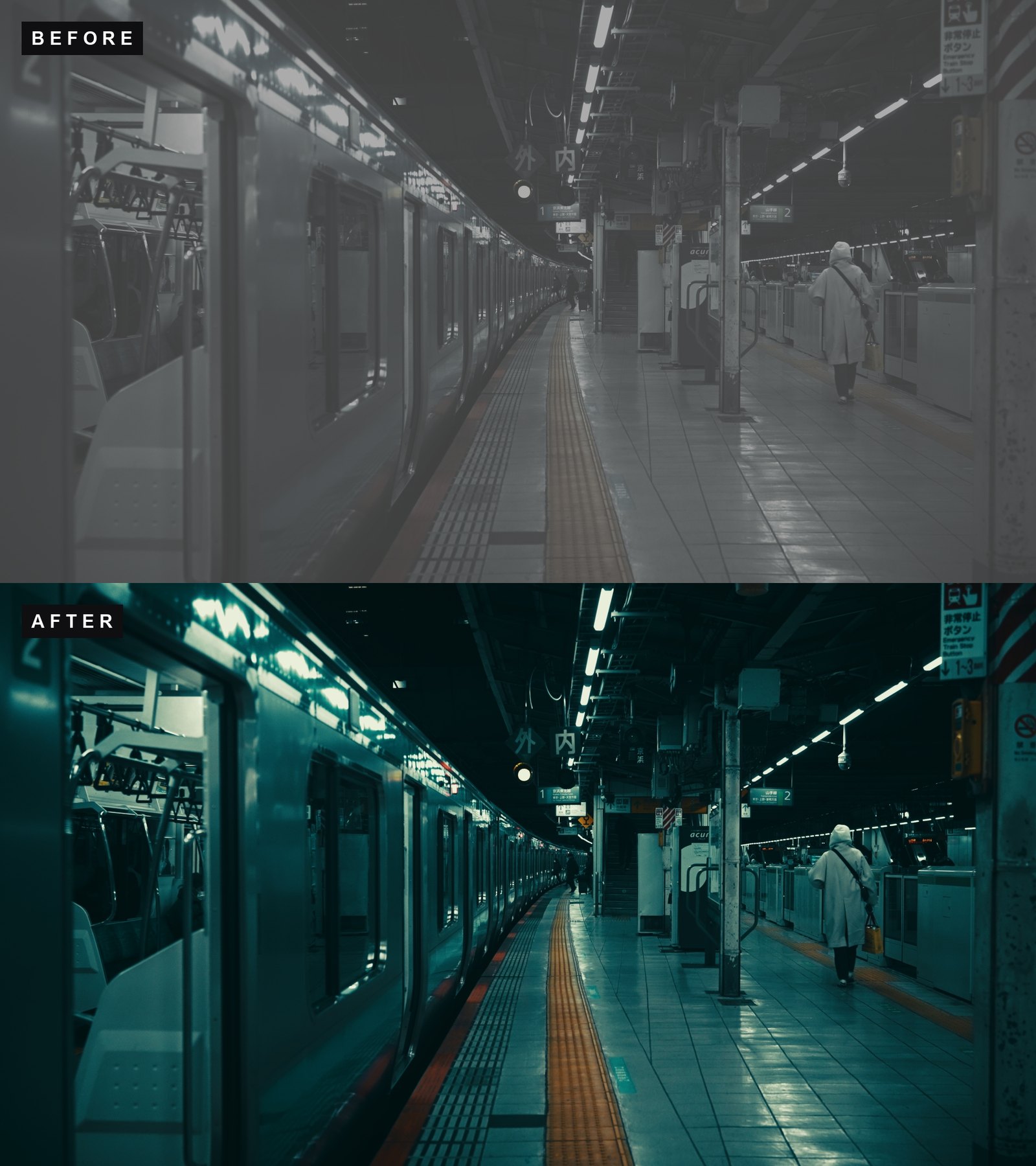 Pacific
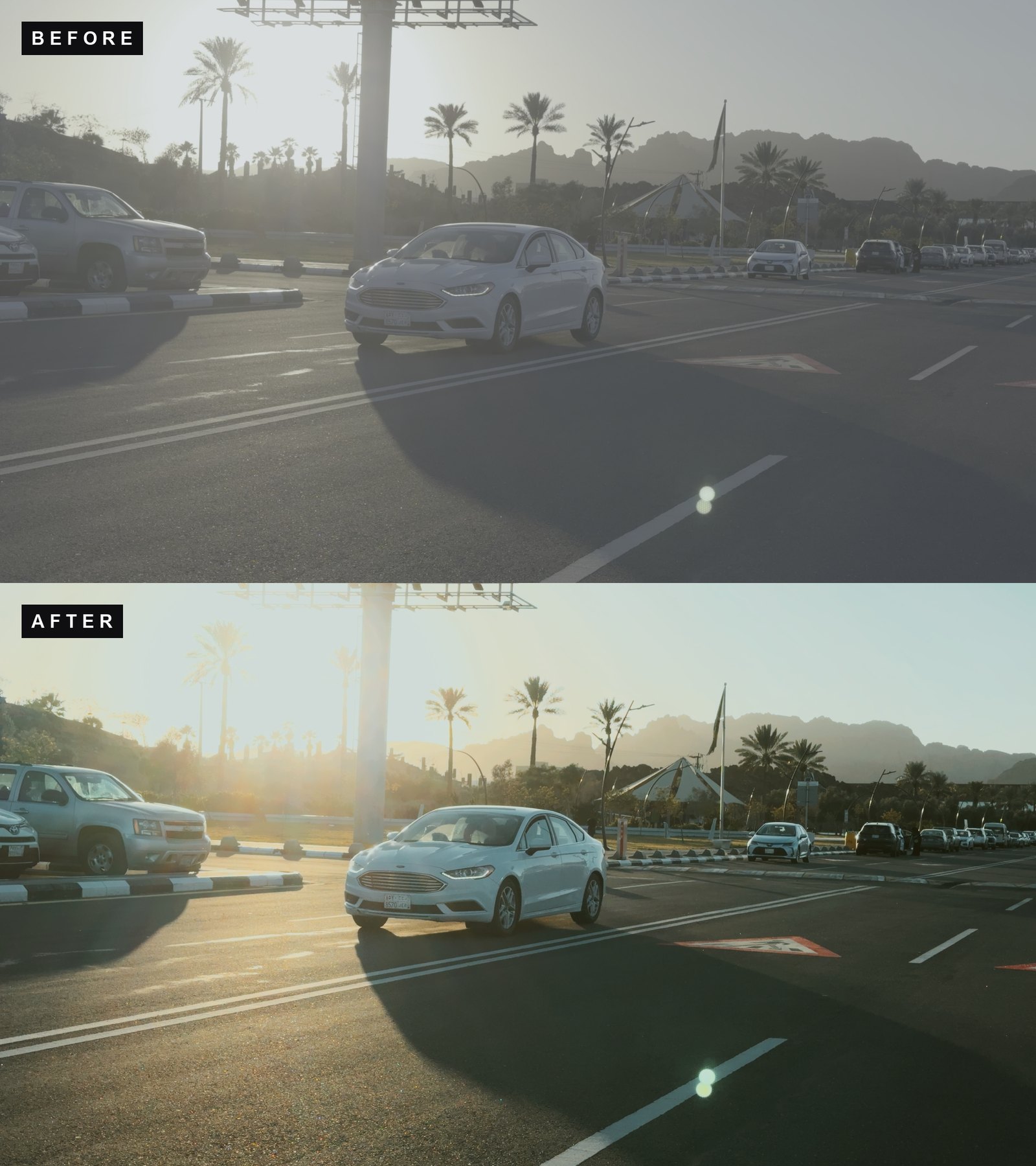 Print 83
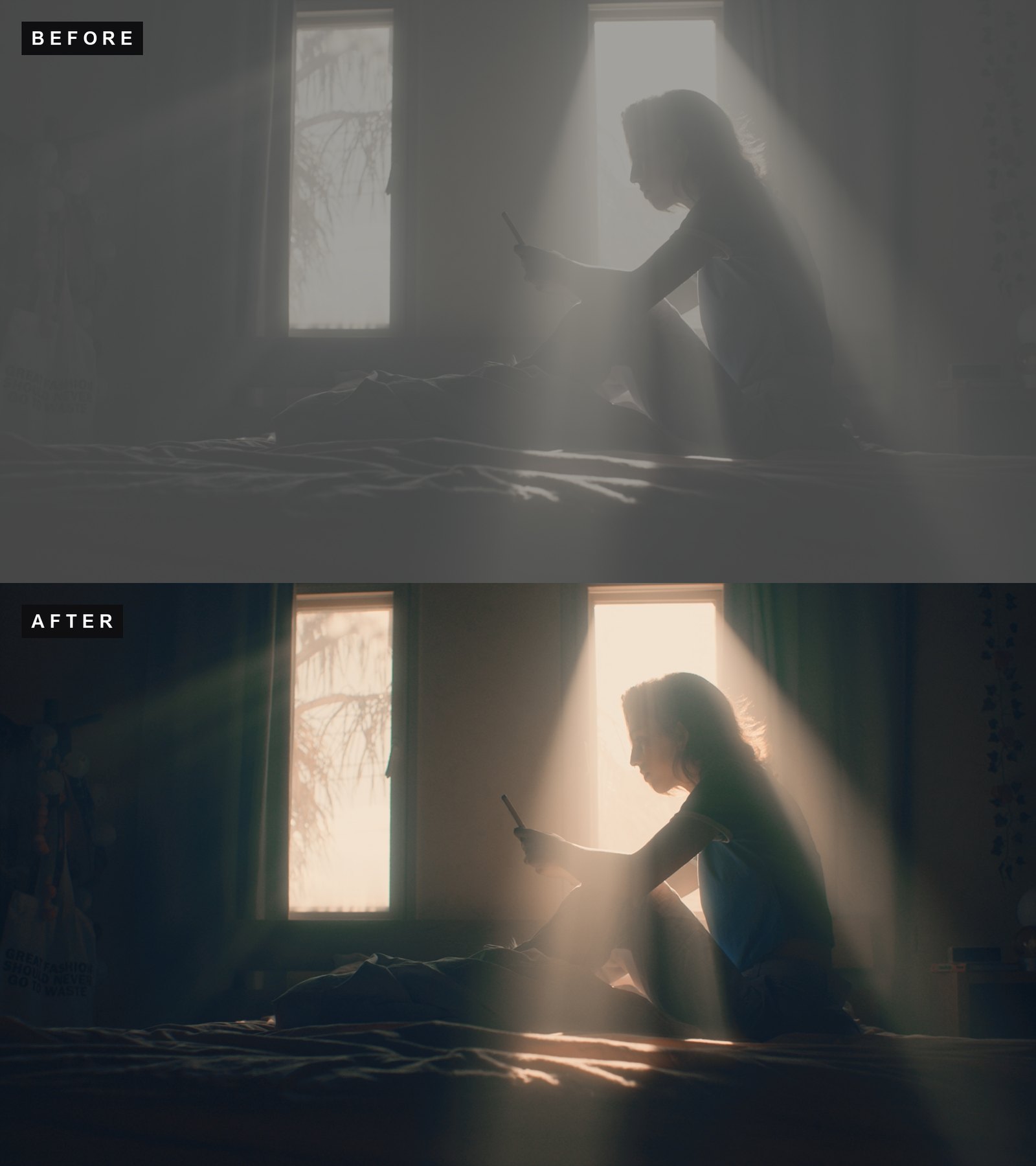 Noir
Noir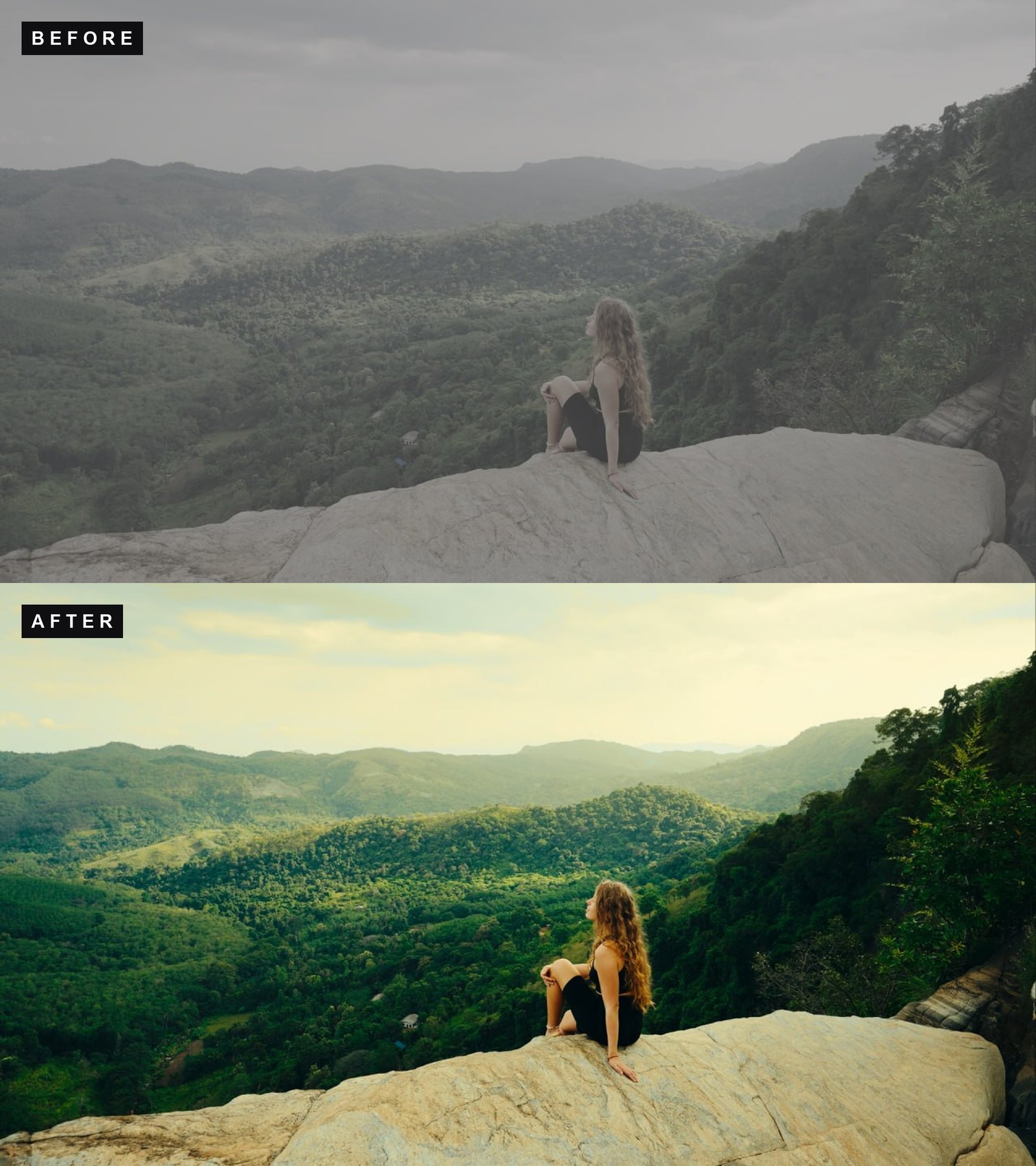 Verde
Verde$34.95$44.95instant downloadGet IPHONE CINEMA
Download the free conversion LUTs
If you only want the neutral starting point, or want to test the workflow before buying anything, the conversions are free. Pick the one for your phone.
- Free Apple Log conversion LUTs, for iPhone 15 Pro and 16 Pro. Three strengths: Natural, Strong and Soft.
- Free Apple Log 2 conversion LUTs, for iPhone 17 Pro. Same three strengths.
Both are 33-point .cube files, the format VN reads. Add one to your cart and check out, no payment details needed. The download is a zip, and the Files app on iPhone opens it with a tap.
How to import and apply a LUT in VN Video Editor, step by step
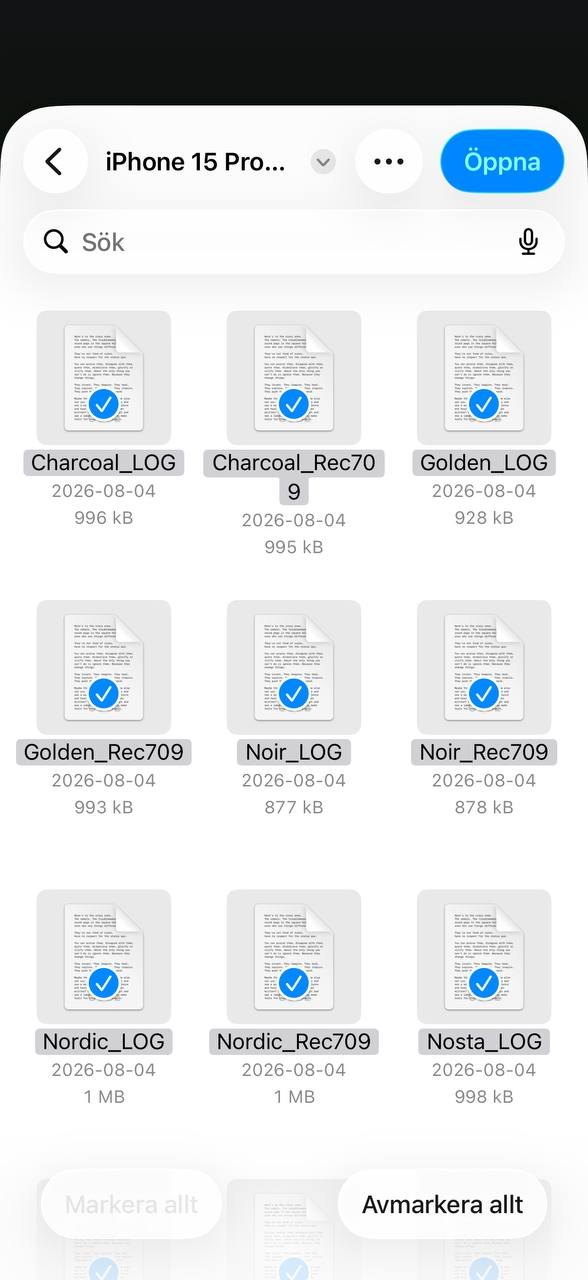
- Get the .cube files onto the phone. Download the zip in Safari, or AirDrop it from a computer. Open the Files app, tap the zip and it unpacks into a folder next to it.
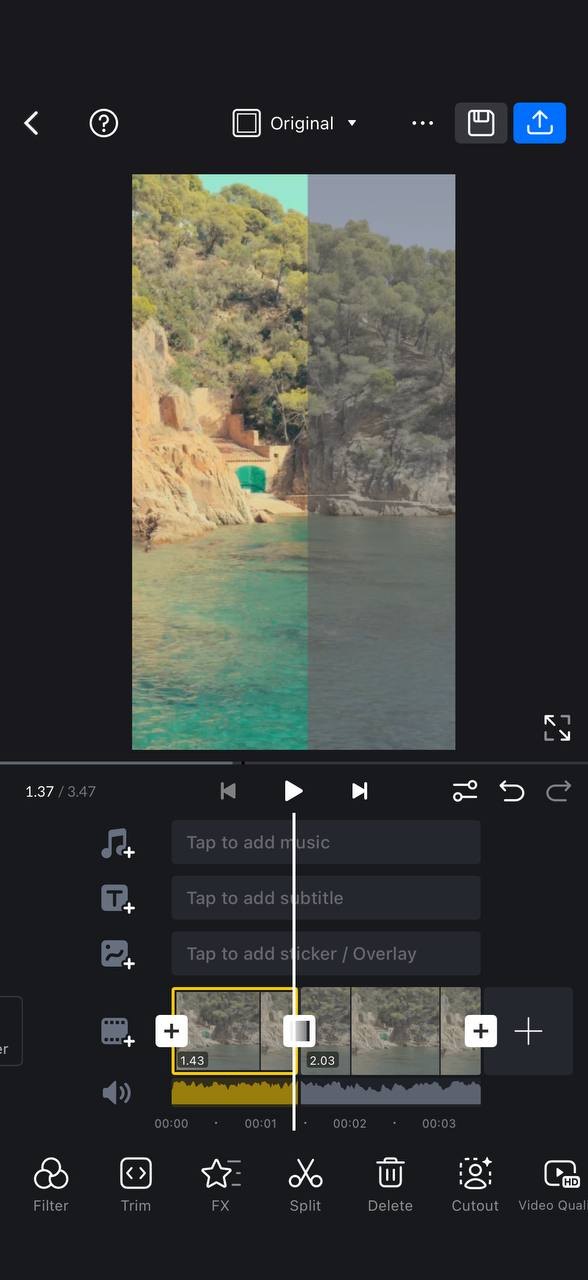
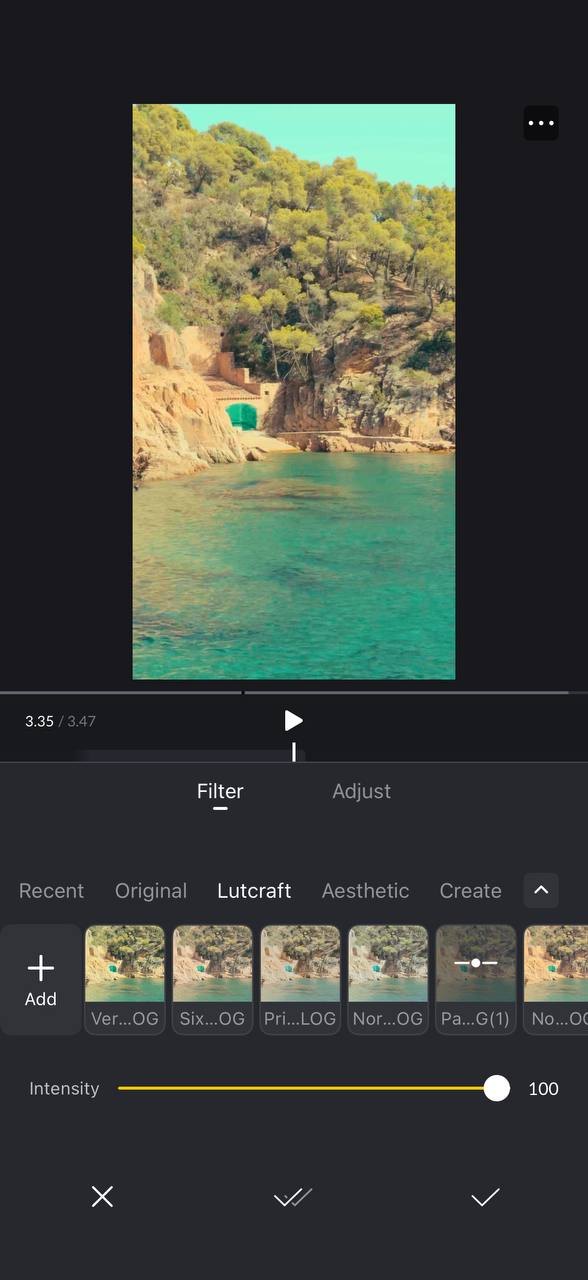
- Open VN and start a project with your Log clip. Tap the clip in the timeline and choose Filter in the bottom bar.
- Create a folder for your LUTs. Tap the small arrow to the right of the filter categories (Recent, Original, Aesthetic and so on), then New Folder, and name it. The name becomes a category in the Filter panel.
- Import the files. Tap the folder, then Import Filter, browse to the unpacked folder in Files, tap Select and tick every .cube file you want, then Open. They all come in at once. Finish with Create Filter Library.
- Apply it. Back in Filter, your folder now sits between the built-in categories. Tap a LUT and it is on the clip. Drag Intensity down if it feels heavy, then tap the double check to apply it to every clip in the project, or the single check for just this one.
- Export. The arrow top right. Match the export to the clip, 4K if that is what you shot, and give ProRes files a moment.
Fixing the usual problems
The LUT made everything dark or crushed. You applied a conversion built for the other Log curve, or a Rec.709 look onto raw Log. Check the file name: LOG for Apple Log on the 15 Pro and 16 Pro, LOG2 for Apple Log 2 on the 17 Pro, Rec709 only for clips that were not shot in Log.
The colors look right but the image is too bright. Log is usually exposed to the right. Go to Adjust, pull exposure down a touch and check white balance before you judge the look.
The file will not import. VN wants .cube files. If you picked the zip itself, or a folder, nothing happens. Unpack first, then pick the individual file.
The filter is gone in a new project. It is not. Imported LUTs live in the filter library, not in the project. Scroll the categories in the Filter panel and your folder is there.
Export is slow. That is the ProRes file, not the LUT. Keep the clip on the phone, not in iCloud, and let it finish.
FAQ
Is VN Video Editor really free?
Yes. VN is free on iPhone, iPad and Android and exports without a watermark. Custom LUT import is included in the free version, which is the whole reason this guide exists.
Can I import LUTs into CapCut on my phone instead?
No. The CapCut mobile app only has its own built-in filters and cannot import custom .cube files. That only works in CapCut for desktop. On the phone, VN and LumaFusion can.
Which LUT do I pick, Apple Log or Apple Log 2?
Apple Log is the curve on iPhone 15 Pro and 16 Pro, Apple Log 2 is the curve on iPhone 17 Pro. Use the conversion or look built for your phone. Mixing them up gives shifted contrast and off skin tones.
Do I still need to grade after the conversion LUT?
Yes. The conversion moves the footage back to Rec.709 so it looks correct and neutral, and that is where it stops. The look is a separate step. The IPHONE CINEMA looks have the conversion built in, so one of those files does both jobs at once.
Why does the LUT look too strong?
Because VN applies it at 100 percent. Drag the Intensity slider down, most of the looks sit well between 70 and 90 on iPhone footage. Fix exposure and white balance under Adjust first if the clip was exposed to the right.
Does the Log clip need to be ProRes?
Apple Log on iPhone records as ProRes, so yes, and the files are big. VN handles them, but give the export a moment. Keep the clips on the phone rather than streaming them from iCloud while you edit.