

The short answer: You can import your own .cube LUTs into CapCut, but only in the desktop app. Open the Adjustment panel, choose LUT, click Import, and select your .cube files. The mobile app does not let you load custom LUTs at all, it only has the built-in filters. If you are editing on your phone and need custom LUTs, use an app that supports them, such as LumaFusion or DaVinci Resolve for iPad.
Import a LUT in CapCut on desktop
- Open your project and drop your clip on the timeline.
- Select the clip, then open the Adjustment panel on the right.
- Find the LUT section and click Import.
- Browse to the folder with your .cube files. You can select several at once.
- Click the LUT to apply it, then use the intensity slider to dial it back if it is too strong.
CapCut desktop accepts both .cube and .3dl files. Imported LUTs stay in your library, so you only have to do this once.
Why the mobile app cannot do it
CapCut on iOS and Android does not have a custom LUT import. The Filters tab looks similar but it only contains CapCut’s own presets, and there is no way to point it at a file on your phone. This is a limitation of the app, not a problem with your LUT files.
People often assume the file is broken because nothing happens when they try to open a .cube from the Files app. The file is fine. The app simply has nowhere to put it.
What to use instead if you edit on your phone
- LumaFusion (iOS and iPadOS) imports .cube LUTs and is the closest thing to a desktop editor on a phone.
- DaVinci Resolve for iPad is free and has the full LUT system.
- VN Video Editor supports custom LUT import on mobile. It is free, and we have a full walkthrough: the easiest way to edit and color your Log video for free on iPhone.
If you want to stay in CapCut, the workaround is to grade on desktop, export, and finish the edit on your phone. It is clumsy, but it works.
Log footage needs a conversion LUT first
If your clip was shot in Apple Log, S-Log3, C-Log3 or any other log profile, apply the conversion LUT before any creative look. The conversion turns the flat log image into normal Rec.709 colour. Putting a creative look straight onto log footage gives you a washed out, low contrast result and people often blame the LUT for it.
In CapCut desktop, stack them by applying the conversion first and then adding an adjustment layer with the creative look on top.
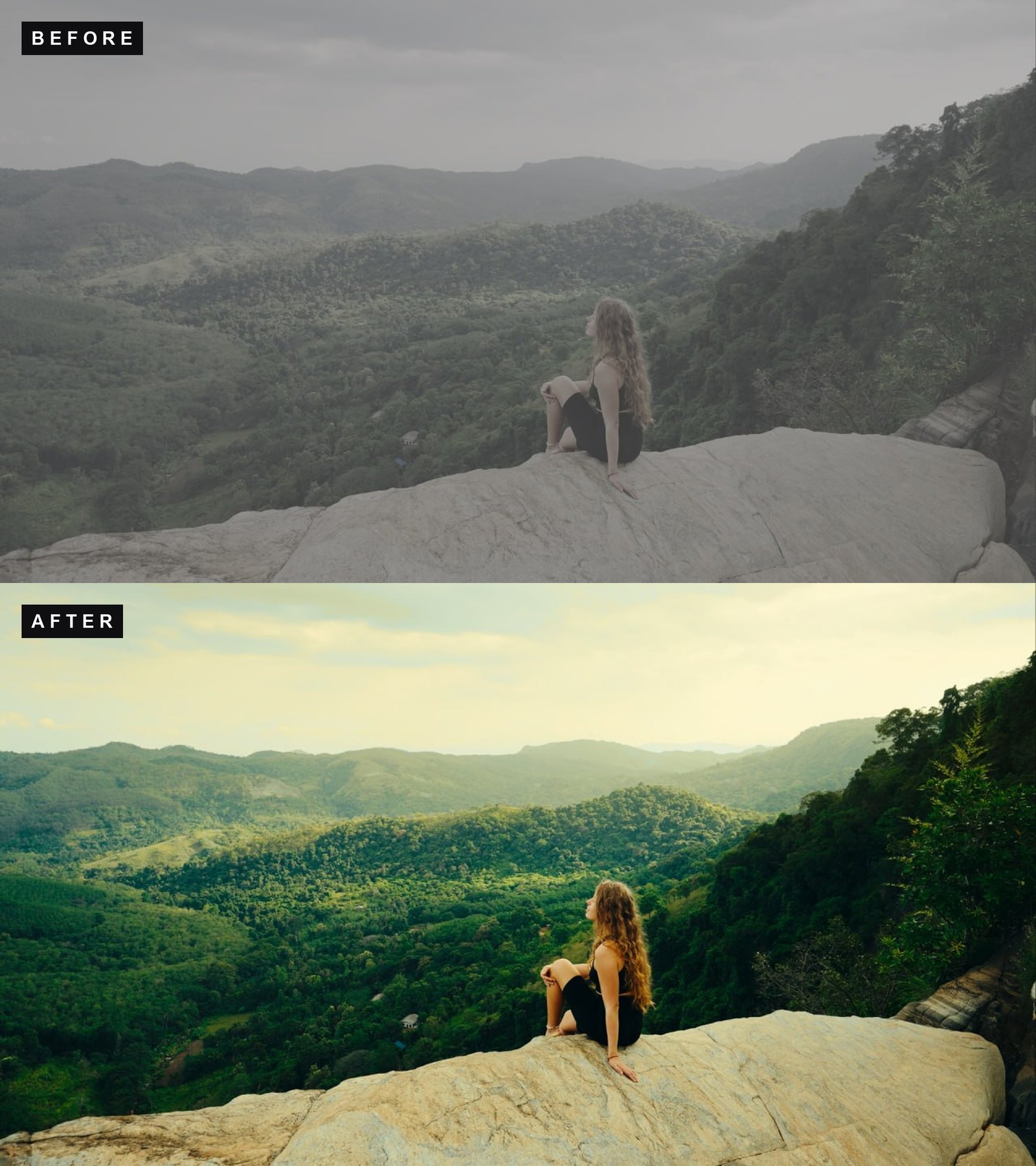
Looks worth loading into CapCut
See it in motion
CapCut on desktop reads .cube, which means a proper LUT pack behaves exactly like it would in Premiere or Resolve. The CINEMA LUT pack is 24 graded looks plus the conversions for seventeen log formats, so the same folder covers both the correction and the look no matter what you shot on.
What’s included
| Cinematic looks | 24, retro, moody and black & white |
| Conversion LUTs | 17 log formats, C-Log3 and S-Log3 included |
| Monitor versions | 17×17, for on-set preview |
| Installation guide | step-by-step PDF |
| Works in | Premiere, DaVinci, Final Cut, LumaFusion |
$29.95$44.95instant downloadGet CINEMA
Free LUTs to test with
All of these are .cube files and work in CapCut desktop.
- Apple Log to Rec.709 for iPhone 15 Pro and 16 Pro
- Apple Log 2 to Rec.709 for iPhone 17 Pro
- Free conversion LUTs for 15 cameras including Sony, Canon, Panasonic and DJI
Fixing the usual problems
The Import button does nothing. Check that the file really ends in .cube. Files downloaded inside a zip sometimes keep a .txt extension after being opened in a text editor.
The look is far too strong. Lower the intensity slider. Most LUTs are built for a neutral starting image, so footage that is already graded will get double treatment.
Colours go strange and oversaturated. You probably applied a creative look to log footage without converting first. See the section above.
The LUT disappeared after restarting. Do not move or delete the original .cube files after importing. CapCut references them where they sit on disk.
FAQ
Can I import LUTs into CapCut on my iPhone?
No. Custom LUT import only exists in the desktop version. The mobile app has built-in filters only.
Does CapCut support .cube files?
Yes, on desktop, along with .3dl.
Is CapCut good enough for colour grading?
For social content, yes. It applies LUTs correctly and has basic curves and wheels. For finishing work with scopes and node based grading you want DaVinci Resolve.
Why does my footage look flat and grey?
It was shot in a log profile and has not been converted yet. Apply a conversion LUT for your camera first.
Want creative looks on top of the conversion? The Cinematic Mega Bundle has 145 looks across four packs, all as .cube files that import straight into CapCut desktop.