
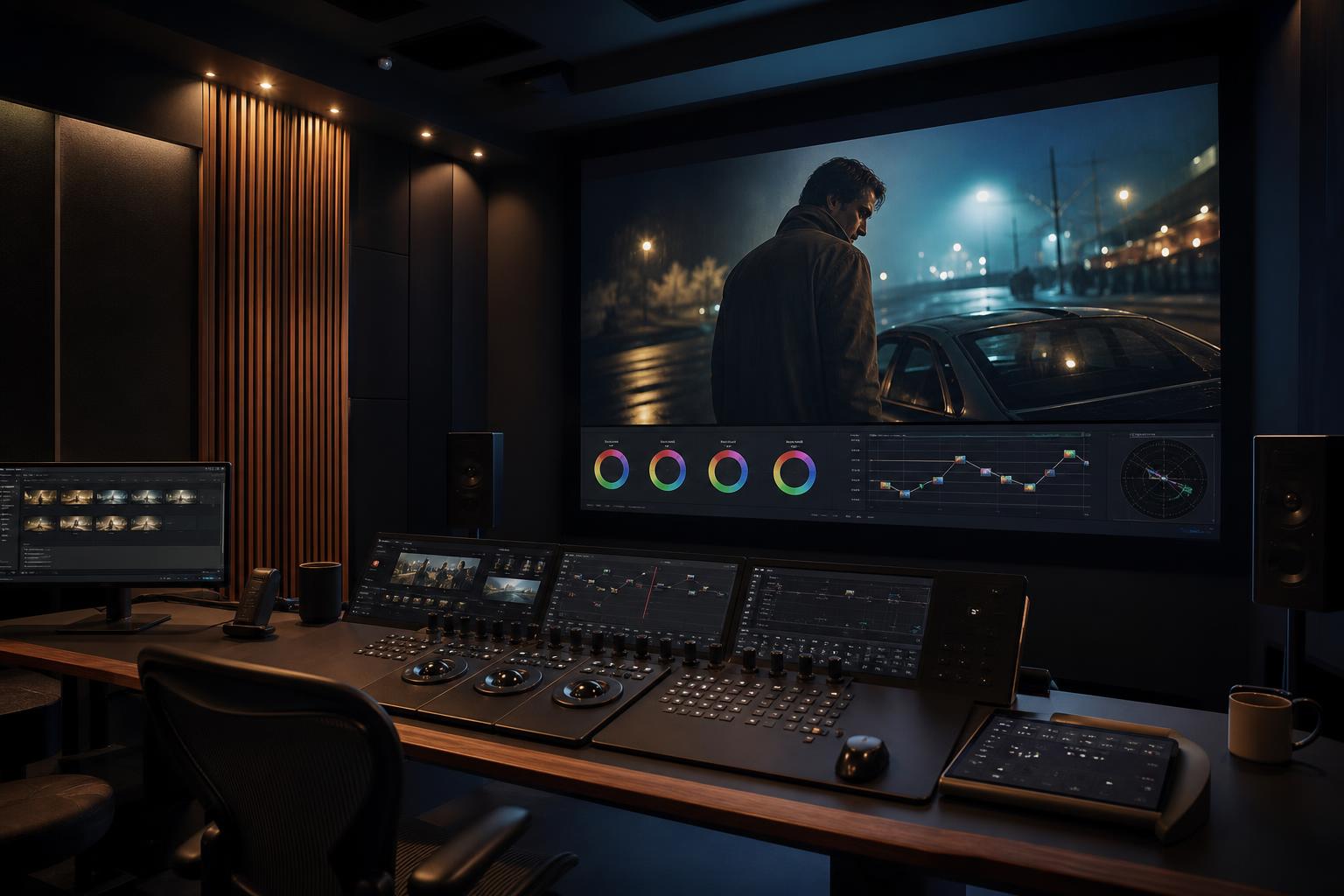
DaVinci Resolve is the industry standard for color grading because it gives you more control than any other editor. But that control comes with a steeper learning curve, especially around LUTs. Here’s exactly how to install a LUT pack, apply it correctly, and use the workflow professional colorists use.
Step 1: Install your LUTs into Resolve’s library
Unlike Premiere, Resolve makes you install LUTs into a specific folder before they show up in the dropdown menus. Doing it once means every project you open from then on has access.
Open DaVinci Resolve. Then:
- Menu bar → DaVinci Resolve → Preferences (Mac) or File → Preferences (Windows/Linux)
- Click “User” tab
- Find “Color” section
- Click “Open LUT Folder” — Resolve opens the LUT directory in Finder/Explorer
Drag your unzipped LUT folder (with all the .cube files inside) into that LUT directory. Resolve organizes LUTs by subfolder, so creating a folder called “Lutcraft” or “Cinematic” makes them easier to find.
Back in Resolve, click the “Update Lists” button in the LUT preferences. The new LUTs are now available everywhere.
Step 2: Set up your color management
Before applying any LUT, your project’s color management matters. Resolve has three modes — DaVinci YRGB, DaVinci YRGB Color Managed, and DaVinci Wide Gamut Intermediate. Each handles LUTs slightly differently.
For most filmmakers grading footage from a single camera (or a few cameras with manual conversions), DaVinci YRGB is the right choice. It’s the closest to how Premiere or Final Cut work. Settings → Color Management → Color science: DaVinci YRGB.
If you’re mixing footage from multiple cameras (iPhone Log, DJI D-Log, Sony S-Log all on one timeline), DaVinci YRGB Color Managed with input transforms set per clip is cleaner. It auto-converts each clip to a common working space before you grade.
Step 3: Apply LUTs in the right order
Open the Color page. The node tree on the right is where the magic happens. The default has one node — you’re going to add more.
The correct workflow for graded Log footage:
- Node 1: Conversion LUT. Right-click node 1 → 3D LUT → navigate to your camera’s conversion LUT (e.g. Apple Log to Rec.709, DJI D-Log to Rec.709, Sony S-Log3 to Rec.709). This neutralizes the Log signal.
- Node 2: Primary adjustments. Alt+S (Mac: Option+S) to add a new node after node 1. Use this for basic exposure, contrast, white balance fixes that should happen BEFORE the creative LUT.
- Node 3: Creative LUT. Alt+S again. Right-click → 3D LUT → apply your creative LUT (e.g. our CINEMA or DARK DREAMS).
- Node 4 (optional): Fine-tuning. Use this for per-shot tweaks that come AFTER the LUT — slight contrast adjustments, saturation pushes, vignettes, etc.
This is the standard “Conversion → Correction → Creative → Final” pipeline. Doing them in a different order produces inconsistent results.
Step 4: The keyboard shortcuts that save hours
Resolve’s color page is keyboard-heavy. The shortcuts that matter:
- Alt+S (Option+S Mac) — Add a new serial node after the current one
- Alt+L (Option+L Mac) — Add a new layer node above the current
- Cmd+D / Ctrl+D — Toggle node bypass (compare with/without)
- Cmd+F / Ctrl+F — Reset current node
- P — Play/pause
- Shift+H — Show wipe between current state and another version
Spend 30 minutes learning these and your grading speed doubles.
Step 5: Apply the grade across the whole timeline
Once one clip is graded the way you want, here’s how to propagate it:
Method 1: Stills + Apply
- Right-click on the source viewer with your graded clip → Grab Still
- The still appears in the Gallery panel
- Right-click the still → Append Node Graph (this loads the node tree onto the current clip)
- Or: Apply Grade (replaces the current node tree entirely)
Method 2: Copy/Paste
- Cmd+C / Ctrl+C on the graded clip in the Edit page timeline
- Select target clips
- Cmd+V / Ctrl+V or right-click → Paste Attributes → Color
Method 1 is more powerful (it stays in the Gallery for future projects), Method 2 is faster for quick distribution within one timeline.
Common Resolve LUT problems
“My LUT doesn’t show up in the right-click menu.” You didn’t click “Update Lists” after installing. Preferences → Color → Update Lists.
“The image goes too dark / blown out after the LUT.” Your input is wrong — the LUT expects Rec.709 but you’re feeding it Log, or vice versa. Verify with the Scopes (View → Show Scopes) — your input should sit between 0-100 IRE before the creative LUT.
“Skin tones look weird.” The conversion LUT for one camera doesn’t match the LUT pack you’re using. If your DJI D-Log conversion makes skin slightly orange and the CINEMA LUT shifts it more orange, the cumulative effect is wrong. Use a per-camera correction node between conversion and creative LUT.
“Export looks different from preview.” Check the Deliver page → Video → Color space: ensure it matches your display’s working color space. Rec.709 for most use cases.
Pro tip: use Compound LUTs for consistent looks
Resolve lets you bake multiple correction nodes into a single LUT file you can export and reuse. If you find yourself doing the same primary correction + creative LUT + final tweak combination on every project:
- Build the node tree once
- Click anywhere in the node graph
- File → Export LUT → 17pt or 33pt Cube
- Save it to your LUT folder
Next project, you have a one-click LUT that does everything in a single node. This is how studios maintain consistency across episodic content.
Looks for your Resolve library
See it in motion
Drop the folder into the LUT directory from step one and the whole pack shows up in the browser. The CINEMA LUT pack gives you 24 graded looks for the creative node and conversions for seventeen log formats for the first node, so the node order in this guide works out of the box.
What’s included
| Cinematic looks | 24, retro, moody and black & white |
| Conversion LUTs | 17 log formats, C-Log3 and S-Log3 included |
| Monitor versions | 17×17, for on-set preview |
| Installation guide | step-by-step PDF |
| Works in | Premiere, DaVinci, Final Cut, LumaFusion |
$29.95$44.95instant downloadGet CINEMA
The takeaway
Install once via the LUT folder, then apply via node tree: conversion → correction → creative → final. Use keyboard shortcuts. Propagate grades via stills or paste attributes. Verify input/output color spaces match.
If you want a LUT pack designed to work cleanly in this Resolve workflow, our CINEMA, DARK DREAMS, and DRONE packs are all calibrated to slot into node 3 of the standard pipeline. The Cinematic Mega Bundle covers all three for $89.