
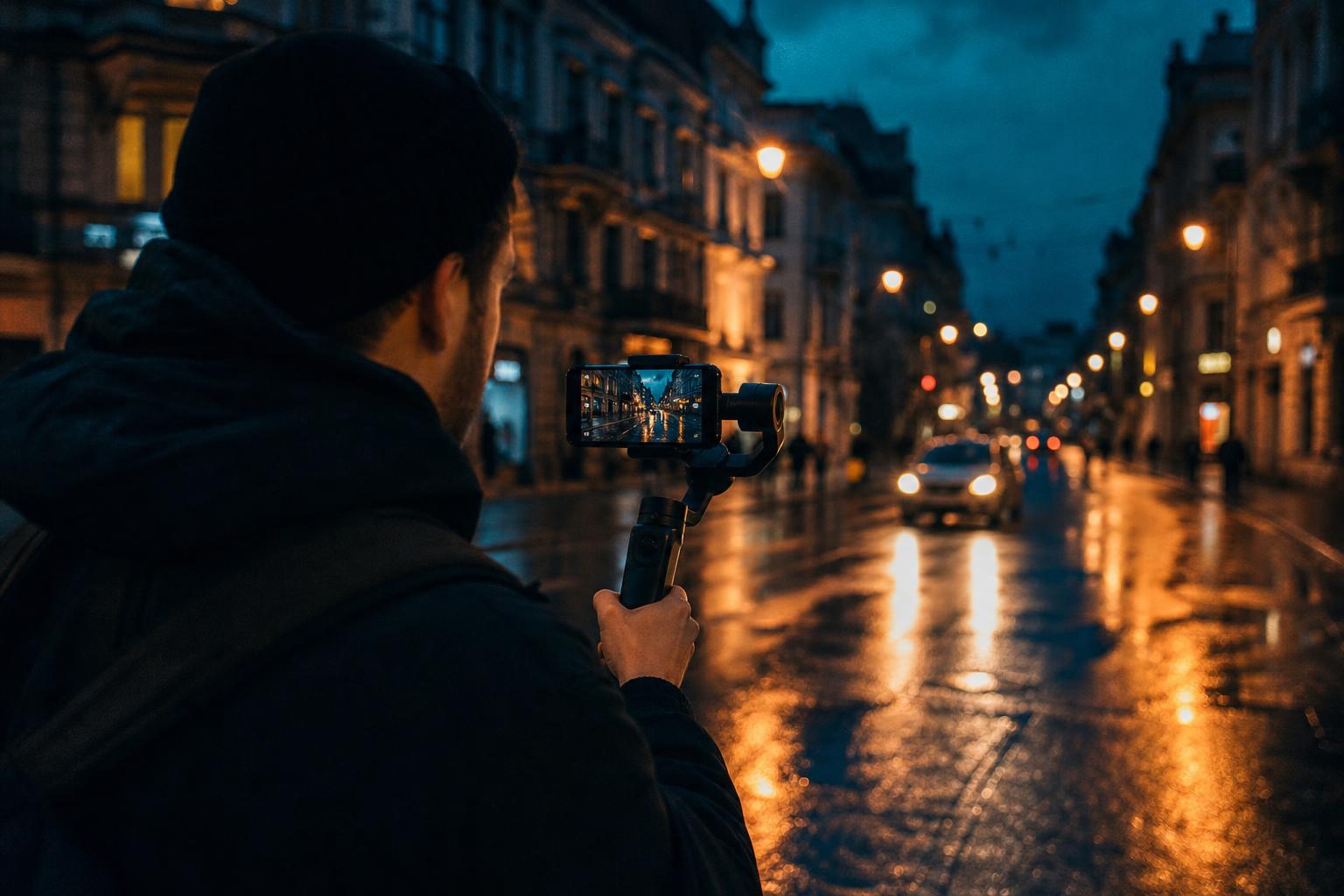
The iPhone 16 Pro is the first phone that can genuinely sit on a real film set. Apple Log in ProRes 4K, USB-C 10Gbps for external SSDs, and an 8.3mm focal length that doesn’t completely fall apart at low light. For independent filmmakers and content creators who don’t want to lug a Sony FX3 around, it’s become a serious tool.
But the camera is only half the story. Apple Log footage looks flat, washed out, and frankly bad straight out of the phone. That’s by design — Log captures more dynamic range so you can grade it later. If you don’t grade it, you’re throwing away most of what makes the iPhone Pro worth using.
Here’s the practical workflow for getting professional-looking footage out of Apple Log, the same one I use on real projects.
What Apple Log actually is
Apple Log is a logarithmic color encoding that captures roughly 12.5 stops of dynamic range. Compared to the standard HEVC or H.264 your iPhone normally records, Log gives you:
- Deeper shadows that don’t crush to black
- Highlights that hold detail instead of clipping
- Color information you can push around significantly in post
The trade-off: the image looks completely flat and lifeless without grading. You’re not shooting a “look” — you’re shooting raw material for a look.
To shoot Apple Log, open Settings → Camera → Formats → Apple ProRes → Color → set to Apple Log. You’ll also want to enable ProRes recording itself (Settings → Camera → Formats → Apple ProRes). Plug in an external SSD via USB-C, because 4K ProRes Log fills internal storage in about 4 minutes per gigabyte recorded.
Step 1: Convert from Apple Log to Rec.709
Before you apply any creative LUT or grade, you need to convert Apple Log to a normalized color space. The standard target is Rec.709, the same color space broadcast TV and most online video lives in.
The cleanest path is Apple’s official conversion LUT. Download it from Apple’s developer page (search “Apple Log to Rec.709 Conversion LUT”) — it’s free. The file is called Apple Log to Rec. 709.cube.
In DaVinci Resolve:
- Drop your iPhone clip on the timeline
- Open the Color page
- On node 1, right-click → 3D LUT → import the Apple conversion LUT
- Your footage should now look normal — proper contrast, natural skin tones, recoverable highlights and shadows
In Premiere Pro:
- Lumetri Color panel → Creative tab → Look dropdown → Browse → import the Apple conversion LUT
In Final Cut:
- Effects → Color → Custom LUT → load the Apple LUT
That’s the technical conversion. Your footage is now “graded to neutral” — ready for creative work.
Step 2: Apply a creative LUT for the cinematic look
This is where the iPhone goes from “decent video” to “looks like it was shot on an Alexa”. A cinematic LUT applied on top of the converted footage handles all the color decisions in one step: the moody shadows, the slightly desaturated greens, the warmer skin tones that make footage feel filmic instead of digital.
Stack your nodes like this in DaVinci:
- Node 1: Apple Log to Rec.709 conversion LUT
- Node 2: Your creative LUT (e.g. CINEMA LUT pack, DARK DREAMS, or anything that reads .CUBE)
- Node 3: Optional fine-tuning — contrast, saturation, slight tint per scene
The order matters. Conversion first, creative LUT second. Reversing them gives ugly results because the creative LUT was designed for Rec.709-encoded footage, not Log.
In Premiere, do the same with two Lumetri Color effects stacked on the clip: Lumetri 1 = conversion, Lumetri 2 = creative LUT.
If you want a starting point, our CINEMA LUT pack has 24 cinematic looks specifically tested on Apple Log → Rec.709 converted footage. The DARK DREAMS pack handles the moody A24-style atmosphere a lot of indie filmmakers are chasing right now.
Step 3: Fine-tune for the iPhone’s quirks
The iPhone sensor has a few specific characteristics that you’ll want to tweak per-shot.
Skin tones can shift slightly green under indoor LED light. Pull the tint a few points toward magenta in the color wheels.
Highlights pinkify when overexposed. If you blew out the sky or a window, lift the saturation on the highlights only (HSL secondary in Resolve, Lumetri Highlights in Premiere) to bring some color back.
The ultra-wide and 5x telephoto have different color science than the main camera. If you cut between them, drop a separate adjustment node to match them. The main camera tends to be slightly warmer.
Shoot at 24 fps, not 60 fps, if you’re going for film-look. Higher frame rates instantly betray digital origin. Set the shutter speed at 1/48s for natural motion blur (Settings → Camera → Record Video → ProRes → 24 fps).
Step 4: Export at the right settings
For YouTube, Vimeo, or Instagram: export ProRes 422 HQ or H.264 at 50 Mbps for 4K. The graded footage is the deliverable, not the Log file.
For longer-form projects (short films, music videos), export ProRes 422 HQ at the timeline resolution. Don’t reduce to H.264 until you’re delivering the final cut, because every transcode introduces tiny compression artifacts in the graded color.
A note on what NOT to do
Don’t apply creative LUTs to raw Apple Log without converting first. The result will look crushed and oversaturated.
Don’t shoot Apple Log if you’re not going to grade. The unprocessed Log footage looks worse than standard iPhone video. If you’re shooting B-roll for a quick Instagram post you won’t grade, just use the regular video setting.
Don’t push the LUT intensity past 100%. Most cinematic LUTs were designed to be applied at full strength on properly exposed footage. If a clip looks too contrasty after LUT application, the answer is usually to tweak exposure first, not reduce the LUT.
Don’t trust the iPhone’s built-in display for color decisions. The phone’s screen is too warm and too saturated. Monitor on a calibrated display before locking the grade.
Both steps in one file
See it in motion
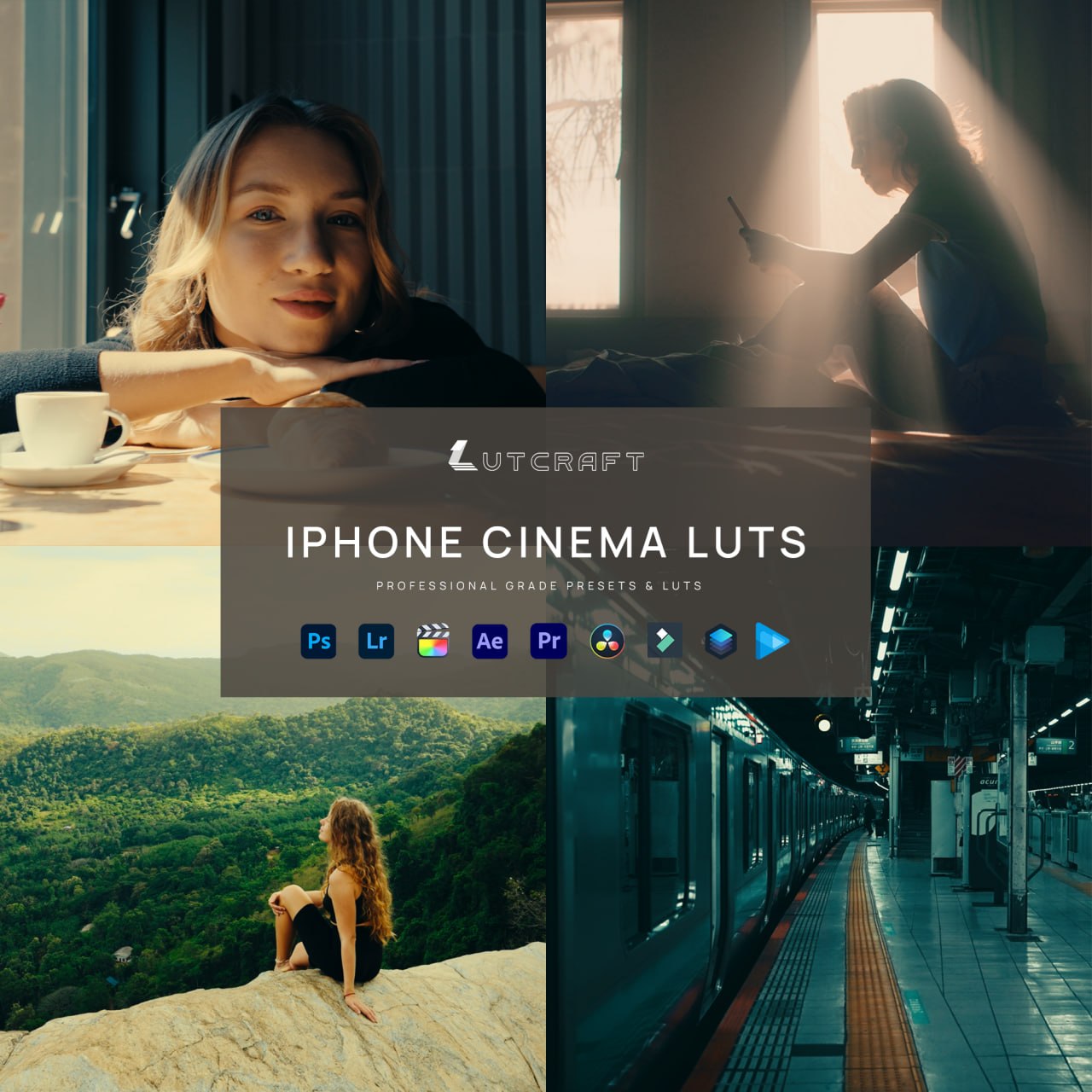
Steps one and two above are separate work on every clip. IPHONE CINEMA is ten looks built and tested on real iPhone footage, and each one ships with the Apple Log conversion inside the file. You apply one LUT and the clip goes from flat grey to finished, with separate versions for the 15 and 16 Pro and for the 17 Pro so the curve is always right.
What’s included
| Cinematic looks | 10, each in three versions |
| Apple Log 2 versions | iPhone 17 Pro, conversion built in |
| Apple Log versions | iPhone 15 and 16 Pro, conversion built in |
| Rec.709 versions | any camera |
| Total files | 40 × .cube |
| Works in | Premiere, DaVinci, Final Cut, LumaFusion, VN |
$29.95$44.95instant downloadGet IPHONE CINEMA
The takeaway
The iPhone 16 Pro can produce footage that’s genuinely indistinguishable from a $5000 cinema camera — but only with a deliberate grading workflow. Apple Log gives you the dynamic range, the Apple conversion LUT normalizes it, and a creative LUT delivers the final look in one click.
That’s the entire workflow. Conversion LUT, creative LUT, minor per-shot tweaks. The footage you walked out with after 90 seconds of iPhone shooting can hold its own next to a real cinema camera by the time it hits your final timeline.
Want a starting point for the creative side? Our CINEMA pack, DARK DREAMS pack, and Cinematic Mega Bundle are all tested on Apple Log workflows and drop directly into the second slot of your node tree. The SAMPLER pack is free if you just want to test the color science on your own footage.
Or skip the conversion step entirely
Every look in IPHONE CINEMA has the Apple Log conversion built in, so one file takes the flat clip straight to a finished cinematic grade. Ten looks, built and tested on real iPhone footage.