
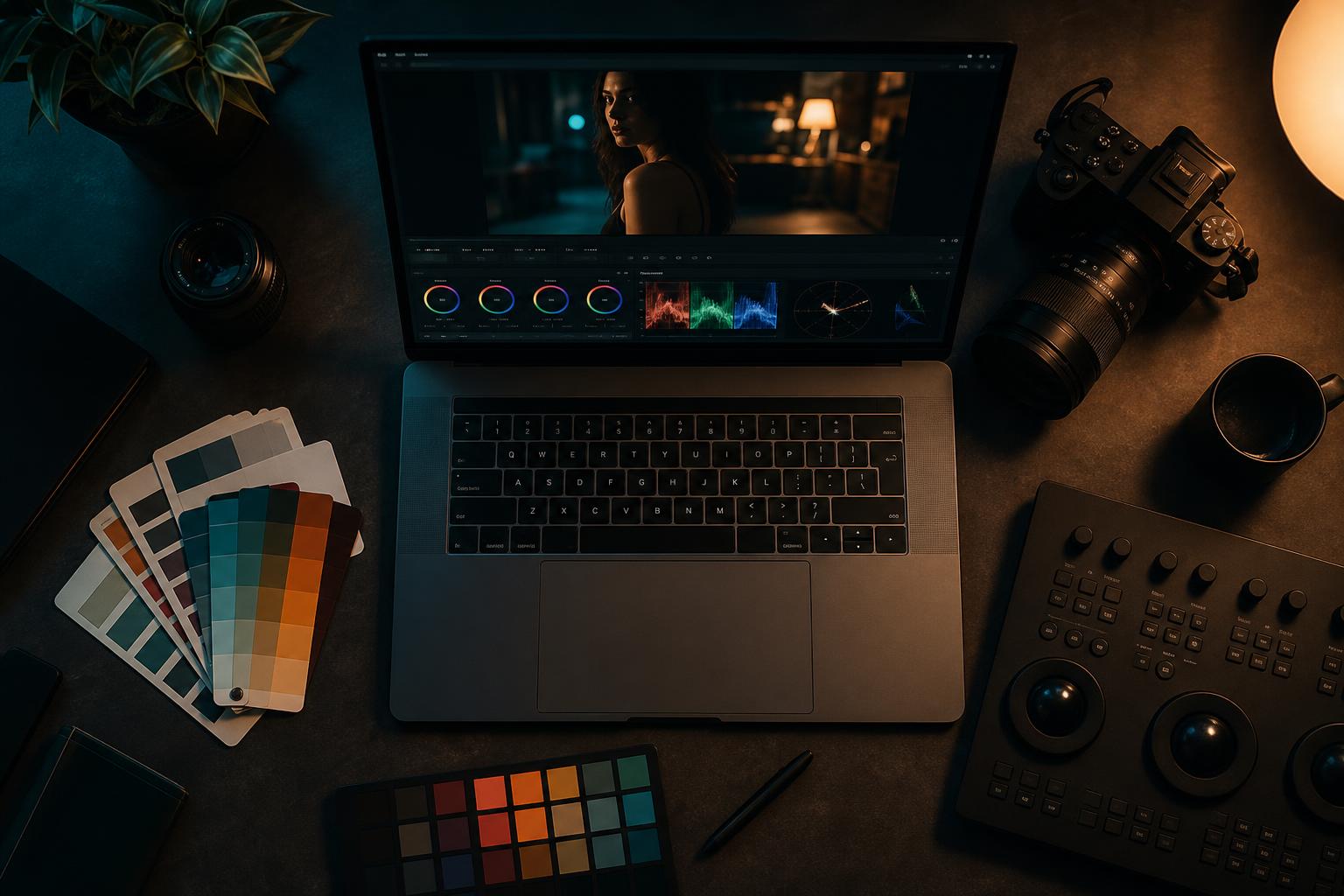
If you’ve shopped for color-grading tools, you’ve seen the two words used almost interchangeably: presets and LUTs. They both promise “one-click color grading”, they both come in packs, and a lot of packs include both formats in the same purchase. So what’s actually different, and which one do you need?
Here’s the practical answer for photographers and filmmakers who just want to know which file to load.
The short answer
Presets are for photos. They live in Lightroom (and similar software) and only work on still images. The file extension is .XMP (or .DNG for Lightroom mobile).
LUTs are for video. They work in editors like Premiere, DaVinci Resolve, Final Cut, and LumaFusion. The file extension is .CUBE.
If you shoot photos, you want presets. If you shoot video, you want LUTs. If you do both, you want both — and most decent packs include both for exactly this reason.
What a preset actually does
A Lightroom preset is a saved set of adjustments. When you click it, Lightroom applies a stored sequence of changes to your photo — exposure, contrast, white balance, individual color shifts in the HSL panel, tone curve, vignette, grain. Anything you can do manually in Lightroom, a preset can store and reapply.
That’s why presets are powerful: they’re a record of your editing decisions, ready to drop on any new photo. Edit one image, save the preset, and your next 200 shots get the same look in a single click.
The trade-off: presets are completely tied to the specific software they’re made for. A Lightroom preset only works in Lightroom (and Adobe Camera Raw, since they share the same engine). They won’t load in Capture One, Photoshop, or any video editor.
What a LUT actually does
A LUT (Lookup Table) is a mathematical color transformation. It takes the original colors in your footage and maps them to new colors, based on a 3D lookup table that’s been precomputed.
That’s a fancier way of saying: it’s a filter. But unlike a preset, a LUT doesn’t change individual settings like exposure or contrast. It just changes the colors. So if your footage is underexposed before the LUT, it’s still underexposed after.
The strength of LUTs is portability. The .CUBE file format is an open standard, so the same LUT works in every major video editor: Premiere, After Effects, DaVinci Resolve, Final Cut Pro, LumaFusion (mobile), Avid Media Composer, Sony Vegas, Filmora, and even tools like Photoshop and Capture One that support LUTs for image work.
When you should use which
Use a preset when:
- You’re editing photos in Lightroom (mobile or desktop)
- You want to adjust individual settings after applying the look
- You shoot RAW files and want a starting point you can refine
Use a LUT when:
- You’re editing video footage in any timeline editor
- You want the same color treatment across multiple programs (Premiere on desktop, LumaFusion on iPad)
- You want to apply a color treatment to photos in Photoshop or Capture One
Use both when:
- You shoot photos AND video for the same project and want a consistent look across both
- You’re a content creator delivering across Instagram (photo) and Reels/TikTok (video)
- You’re a wedding or event shooter mixing stills and footage in the same client deliverable
This last case is why most of our packs ship both formats. Our CINEMA pack is LUTs only (24 .CUBE files) because it’s specifically built for filmmakers. But our PULSE, BLACK, and VINTAGE packs include the same color treatments as both Lightroom presets AND .CUBE LUTs, so your photo edits match your video edits without manual matching.
What about Photoshop LUTs?
Photoshop also supports .CUBE LUTs through the Color Lookup adjustment layer (Image → Adjustments → Color Lookup, or as an adjustment layer in the Layers panel). So if you want video LUTs to work on stills in Photoshop, they do. This is a common workflow for color-treating product photos to match a video deliverable in the same campaign.
LUTs in Photoshop work differently than presets in Lightroom though. You can’t fine-tune the individual settings — you can only adjust opacity and stack additional adjustment layers. For full creative control on stills, you want presets in Lightroom. For matching a video look quickly on a still, LUTs in Photoshop are faster.
Why “AI presets” and “AI LUTs” are mostly marketing
You’ll see a lot of products labeled “AI presets” or “AI LUTs” right now. The honest version: there’s no AI applied at runtime on your image. The “AI” part means someone (or something) generated the preset/LUT data based on training images. Once it’s a .XMP or .CUBE file, it’s the same mathematical transformation as any other preset or LUT.
That’s not bad — some AI-generated LUTs are genuinely good. But it’s not a category that does more than a hand-crafted preset can do. Skill of the creator matters far more than whether AI was involved in the building.
If video is where you landed
See it in motion
If the answer for you is LUTs rather than presets, the CINEMA LUT pack is where to start: 24 graded looks in .cube, plus the conversions for seventeen log formats so flat footage is handled before the look goes on.
What’s included
| Cinematic looks | 24, retro, moody and black & white |
| Conversion LUTs | 17 log formats, C-Log3 and S-Log3 included |
| Monitor versions | 17×17, for on-set preview |
| Installation guide | step-by-step PDF |
| Works in | Premiere, DaVinci, Final Cut, LumaFusion |
$29.95$44.95instant downloadGet CINEMA
If you landed on presets instead, the Lightroom packs are in the preset collection.
The takeaway
Presets for photos, LUTs for video, both for cross-medium projects. The file extensions (.XMP / .DNG vs .CUBE) tell you which is which.
If you’re not sure where to start, our SAMPLER pack is free and includes both formats — three presets from BLACK plus three from PULSE in .XMP, .DNG, and .CUBE. You can test the same color science on a photo in Lightroom and a video in Premiere, see which medium your work needs more support in, and decide from there.
If you already know you shoot both, the Cinematic Mega Bundle covers the video side with three LUT packs (CINEMA + DARK DREAMS + DRONE = 106 LUTs total). Pair it with one of our preset packs for the photo workflow.