
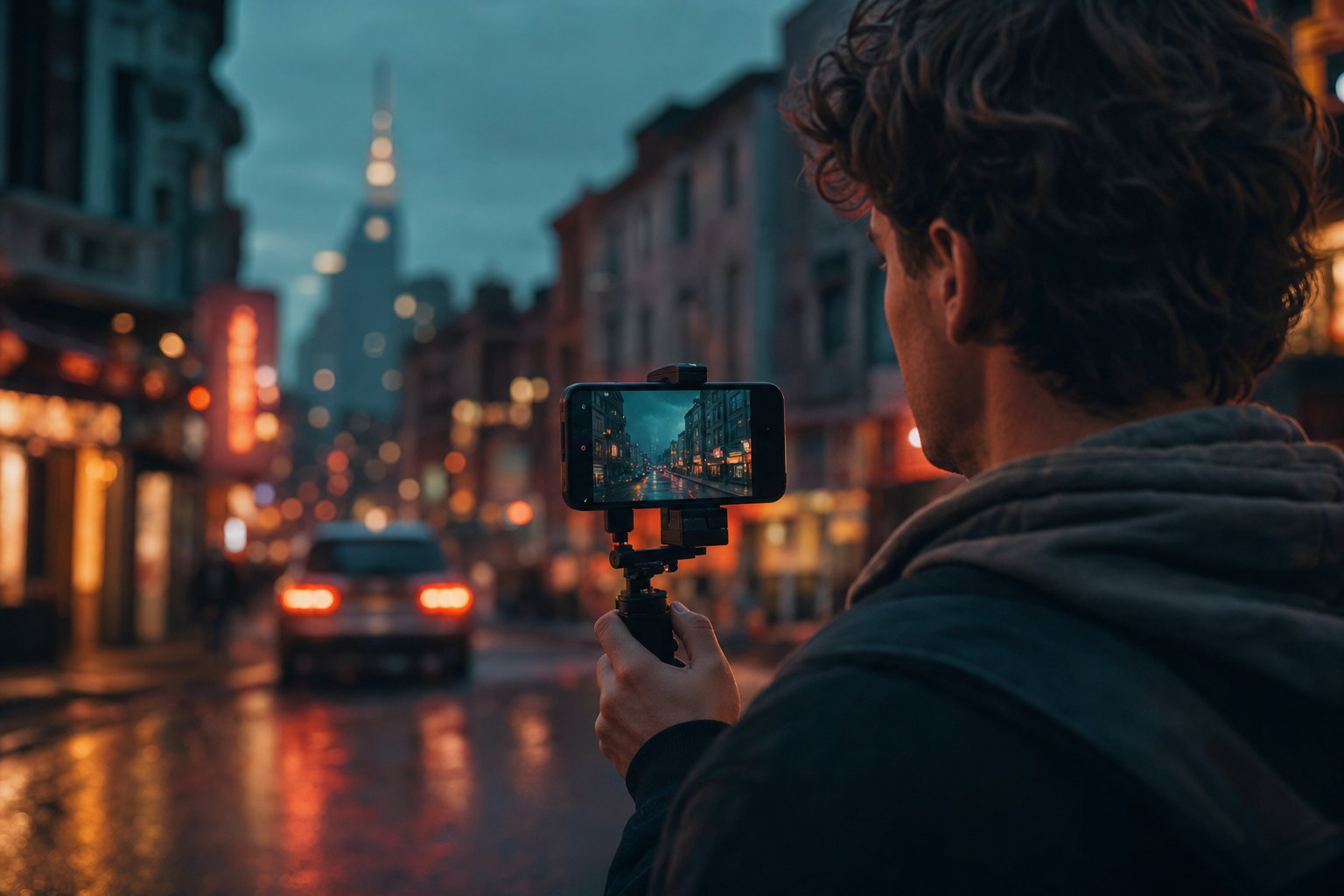
The short answer: the iPhone 18 Pro and 18 Pro Max record Apple Log 2, the same Log format as the iPhone 17 Pro. To color it, apply an Apple Log 2 to Rec.709 conversion LUT first, then your look on top. LUTs made for the original Apple Log (iPhone 15 Pro and 16 Pro) give the wrong colors on Apple Log 2 footage. Our Apple Log 2 conversion LUTs are free, further down this page, and there are also look LUTs that do the conversion and the grade in one file.
What the iPhone 18 Pro records for color grading
Apple lists these pro video formats for the iPhone 18 Pro and 18 Pro Max:
- Apple Log 2, the flat Log profile you grade with a LUT. This is the one this guide is about.
- ProRes, up to 4K at 120 fps when you record to an external drive.
- ProRes RAW, a RAW format for the heaviest grading workflows.
- ACES (Academy Color Encoding System) support, for color-managed pipelines.
If you shoot Log on the phone and edit in CapCut, VN, Resolve, Premiere or Final Cut, Apple Log 2 is what you will be working with, and everything below applies.
Why your old Apple Log LUTs look wrong on iPhone 18 Pro
Apple Log 2 is not just a new name. It uses a wider color gamut than the original Apple Log, so the numbers in the file mean different colors. A LUT built for the original Apple Log expects the old gamut, and applied to Apple Log 2 footage it produces skewed color: off skin tones, odd greens and blues that never quite look right no matter how you adjust them.
The fix is simple: use a conversion LUT built for Apple Log 2. Because the iPhone 18 Pro records the same Apple Log 2 format as the iPhone 17 Pro, LUTs made for Apple Log 2 work on both.
The conversion is a starting point, not a finished grade. It turns the flat, gray Log image into correct, neutral Rec.709. The look, the mood and the color style are a separate step on top.
From flat Log to a finished look
See it in motion
This skips the conversion entirely. IPHONE CINEMA is ten graded looks built and tested on real iPhone footage, and every look has the Apple Log 2 conversion built into the file. You do not convert first and then grade on top. One LUT takes the clip from flat gray straight to finished.
What’s included
| Cinematic looks | 10, each in three versions |
| Apple Log 2 versions (iPhone 17 Pro and 18 Pro) | conversion built in, one file per look |
| Apple Log versions (iPhone 15/16 Pro) | conversion built in, one file per look |
| Rec.709 versions (any camera) | for non-Log footage |
| Total files | 36 LUTs, 33-point .cube |
The looks: Pacific (teal and orange), Print 83 (Kodak print film), Nosta (warm nostalgic negative), Verde (Fuji-inspired greens), Golden (golden hour), Nordic (cool scandinavian), Noir (night and neon), Charcoal (dramatic black and white), Sixteen (16mm vintage), Slate (moody desaturated).
$44.95instant downloadGet IPHONE CINEMA
Before and after
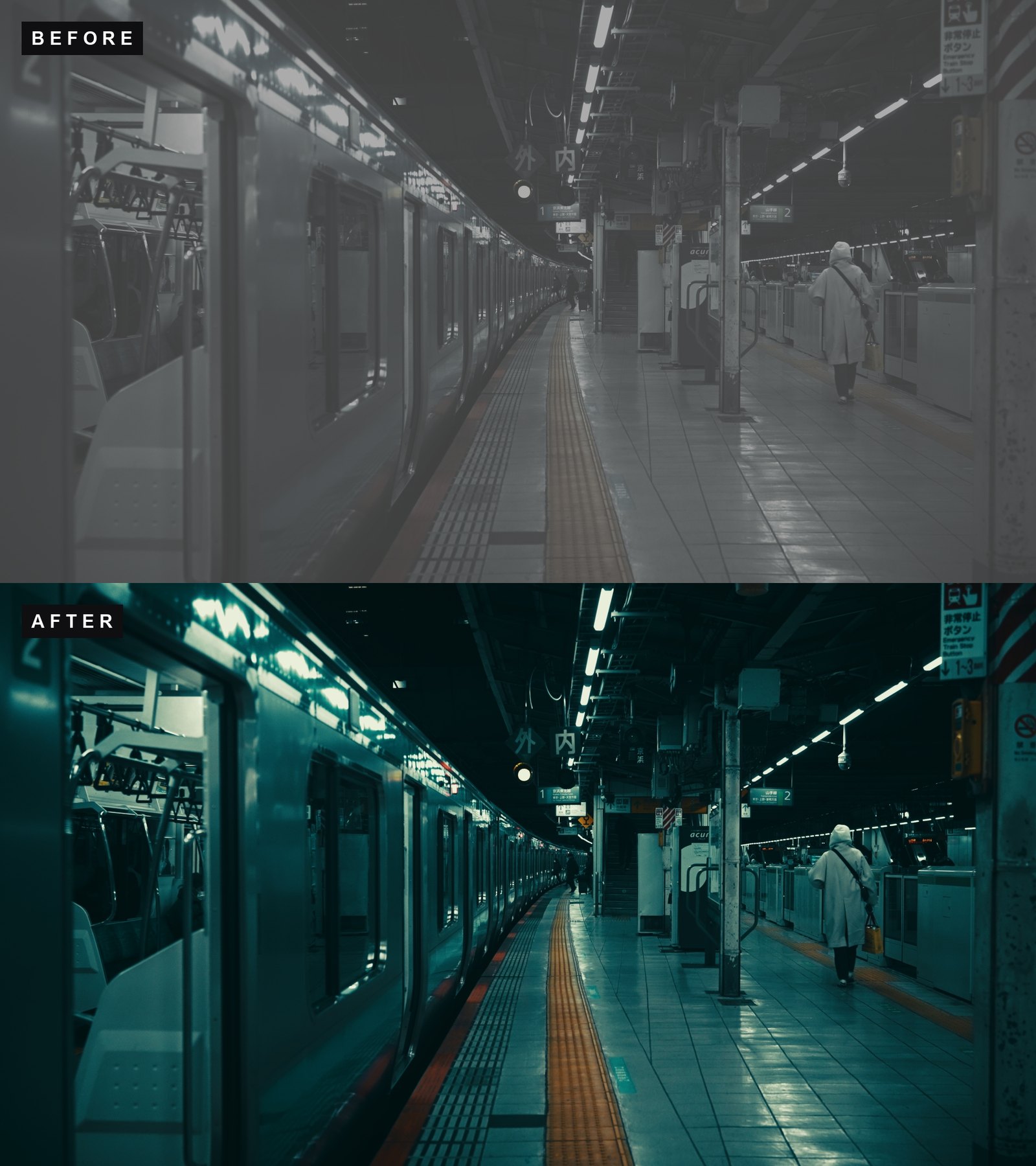 Pacific
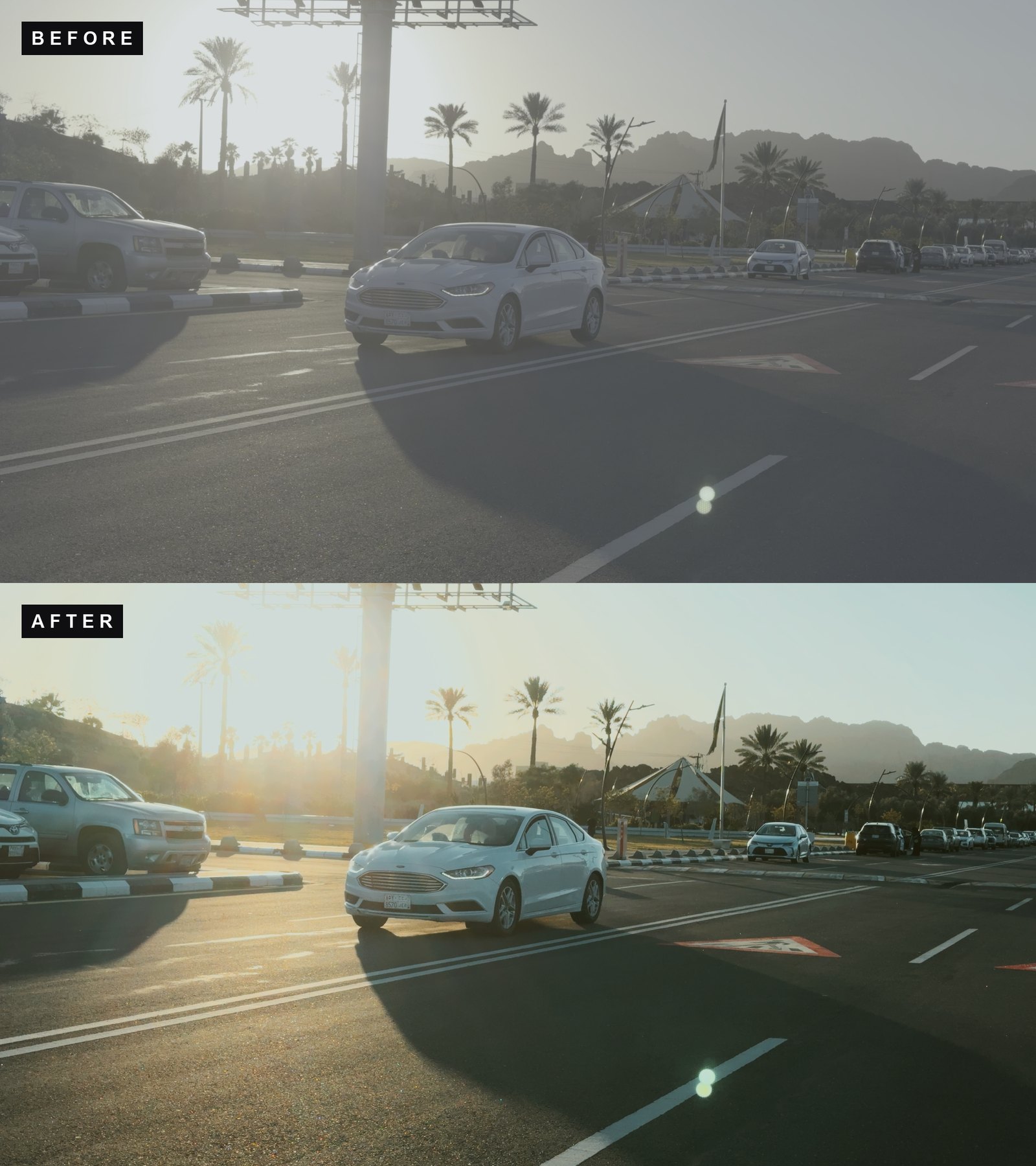 Print 83
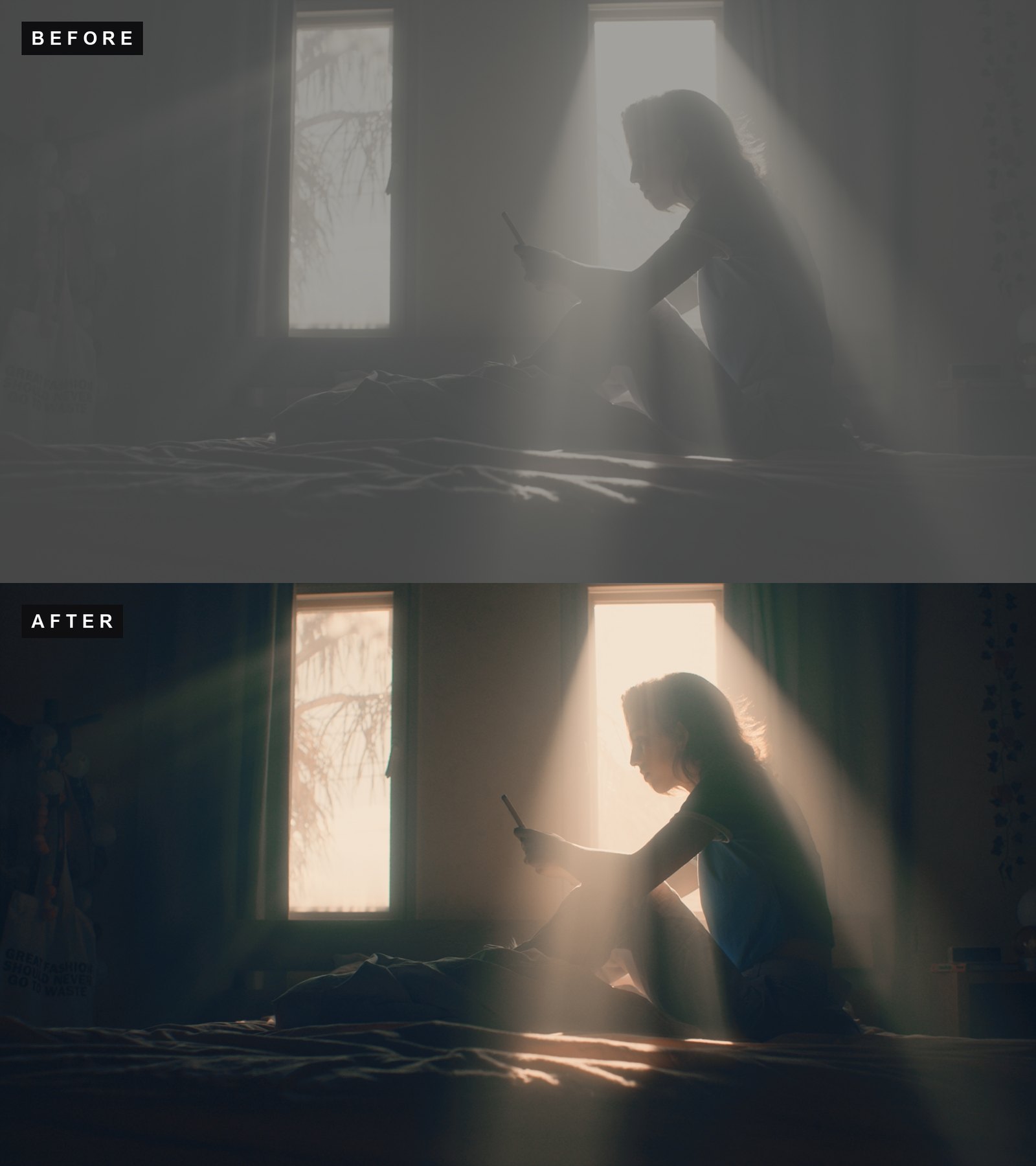 Noir
Noir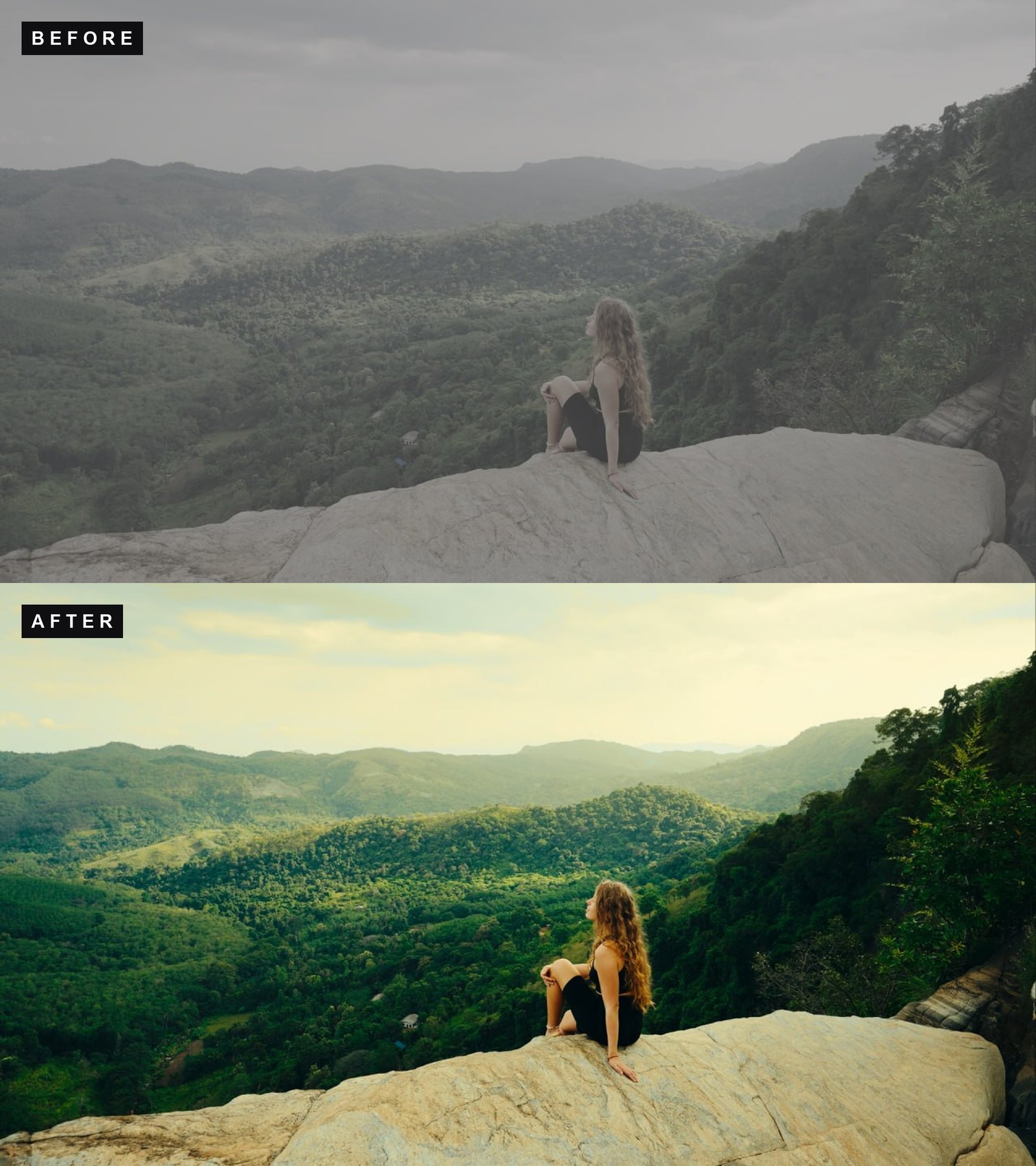 Verde
Verde$44.95instant downloadGet IPHONE CINEMA
Download the free Apple Log 2 conversion LUT
Get the free Apple Log 2 conversion LUTs here, three .cube files at 33 points: Natural for accurate color, Strong for more punch out of the box, Soft as a flat base for your own grade.
They are built by Lutcraft in DaVinci Resolve for Apple Log 2, the format the iPhone 18 Pro records, and tested on real iPhone footage in daylight, indoor and low light. If you would rather not do it in two passes, the same conversions sit inside every IPHONE CINEMA look, so one file there handles the conversion and the grade at once.
Turn on Apple Log 2 on the iPhone 18 Pro
- Open Settings > Camera > Formats and turn on the ProRes and Log option.
- In the Camera app, switch to Video and select Log. The preview looks flat and gray, which is correct.
- Expose a little brighter than you normally would. Log holds highlights well, and slightly bright footage grades cleaner than dark footage. See our guide on how to expose Log footage.
How to use it in CapCut
- Open your project and select the Log clip.
- In CapCut for desktop, go to Filters > LUT and click Import. The CapCut mobile app cannot import custom LUT files, so on iPhone use VN Video Editor (Filter > LUT > Import) or LumaFusion instead.
- Pick one of the three .cube files (start with AppleLog2_Rec709_Conversion.cube, the Natural version) and apply it to the clip.
- Adjust intensity to taste. Done.
How to use it in DaVinci Resolve
- Drop the file in your LUT folder (Project Settings > Color Management > Open LUT Folder), then click Update Lists.
- On the Color page, right-click a node and pick the LUT under 3D LUT.
- Grade on top with a new node if you want your own look.
How to use it in Premiere Pro
- Select the clip, open Lumetri Color > Basic Correction.
- Under Input LUT, choose Browse and select the .cube file.
How to use it in Final Cut Pro
- Add the Custom LUT effect to the clip.
- In the effect settings, choose Choose Custom LUT and select the file.
FAQ
Does the iPhone 17 Pro LUT work on the iPhone 18 Pro?
Yes. Both record Apple Log 2, so a conversion LUT built for Apple Log 2 is the right one for both phones.
Can I use my old Apple Log LUTs on iPhone 18 Pro footage?
Not as a conversion. LUTs built for the original Apple Log (iPhone 15 Pro and 16 Pro) expect a different color gamut and give skewed colors on Apple Log 2. Use an Apple Log 2 conversion LUT first, then your creative look on top.
Do I still need to grade after the conversion?
Yes. The conversion moves the footage to Rec.709 so it looks correct and neutral. After that you balance exposure and white balance and add the look. The looks in IPHONE CINEMA have the Apple Log 2 conversion built in, so one of those does the whole job in a single step.
Is it really free?
Yes, completely free. Add it to your cart and check out, no payment details needed. Use it in personal and commercial projects.
What about ProRes RAW?
This guide and the free LUT are for Apple Log 2 recordings. ProRes RAW is a separate RAW workflow that is handled in your editor’s RAW settings.
Keep reading
- How to Color iPhone Log Footage (Free Apple Log 2 to Rec.709 LUT)
- The Easiest Way to Edit and Color Your Log Video for Free (VN on iPhone)
- Apple Log vs Apple Log 2: What Changed on iPhone 17 Pro (and Which LUT to Use)
- Free Apple Log to Rec.709 Conversion LUTs (iPhone 15 Pro & 16 Pro)
- The Best LUTs for iPhone (Apple Log and Apple Log 2)
- How to Expose Log Footage So It Actually Grades Well
Shooting a DJI drone as well? See How to Color DJI D-Log and D-Log M Footage.