
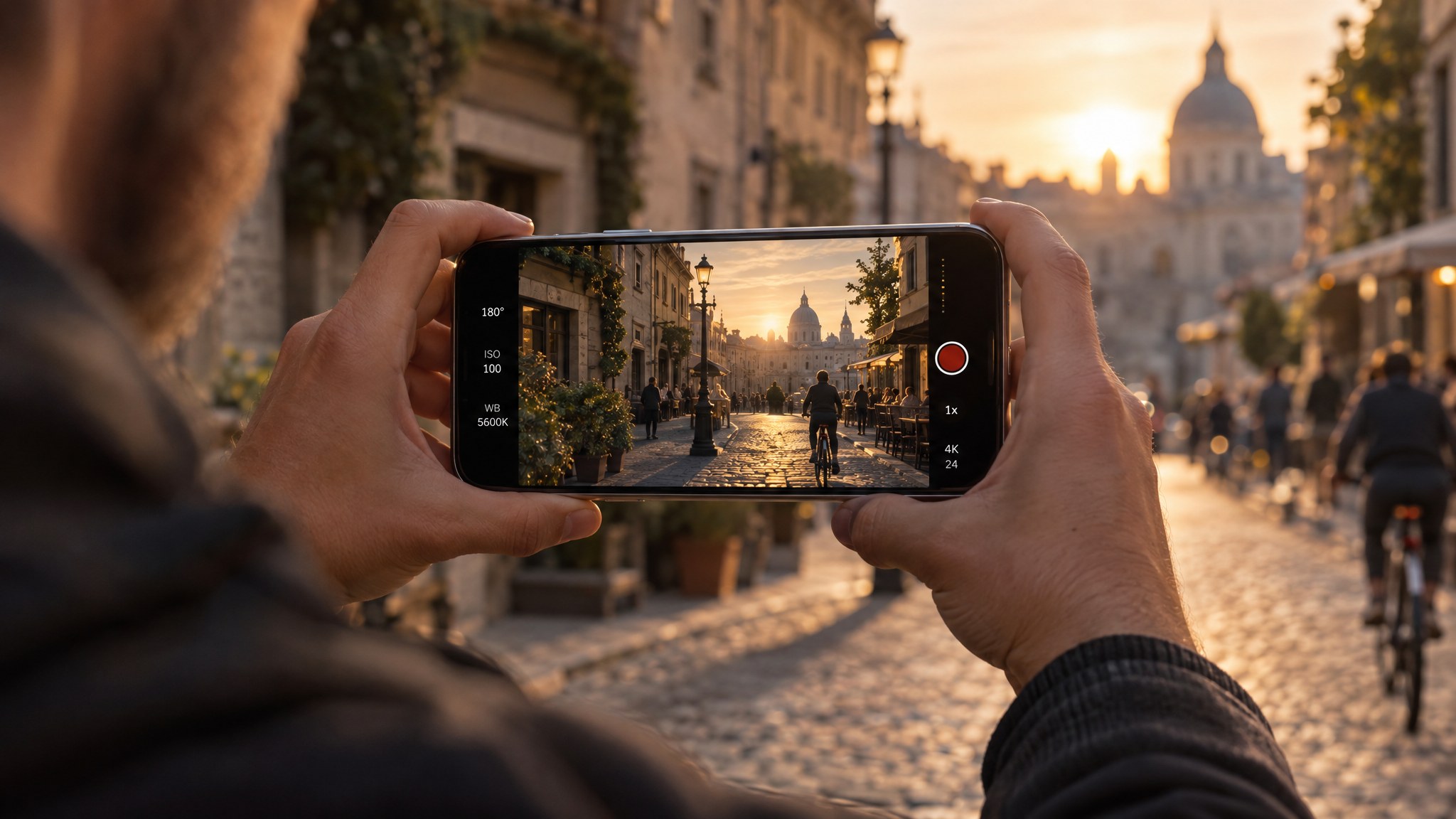
The short answer: load a cinematic look LUT in the free Blackmagic Camera app (Settings > LUTs Manager > Import LUT), switch it on in the camera view and turn on Record LUT to Clip. Every clip you film then comes out of the iPhone with the look baked in, ready to post. No editing, no grading. Want to grade later instead? Record Apple Log with our free conversion LUT, further down this page.
Film with a cinematic look, straight from the iPhone
Most people do not want to grade. They want to point the phone, film, and post something that looks like a movie. Blackmagic Camera makes that possible: it can apply a LUT while you record, so the look is in the file from the first frame.
You also see the finished image on screen while you shoot, so you frame and light for the look, not for a flat gray picture.
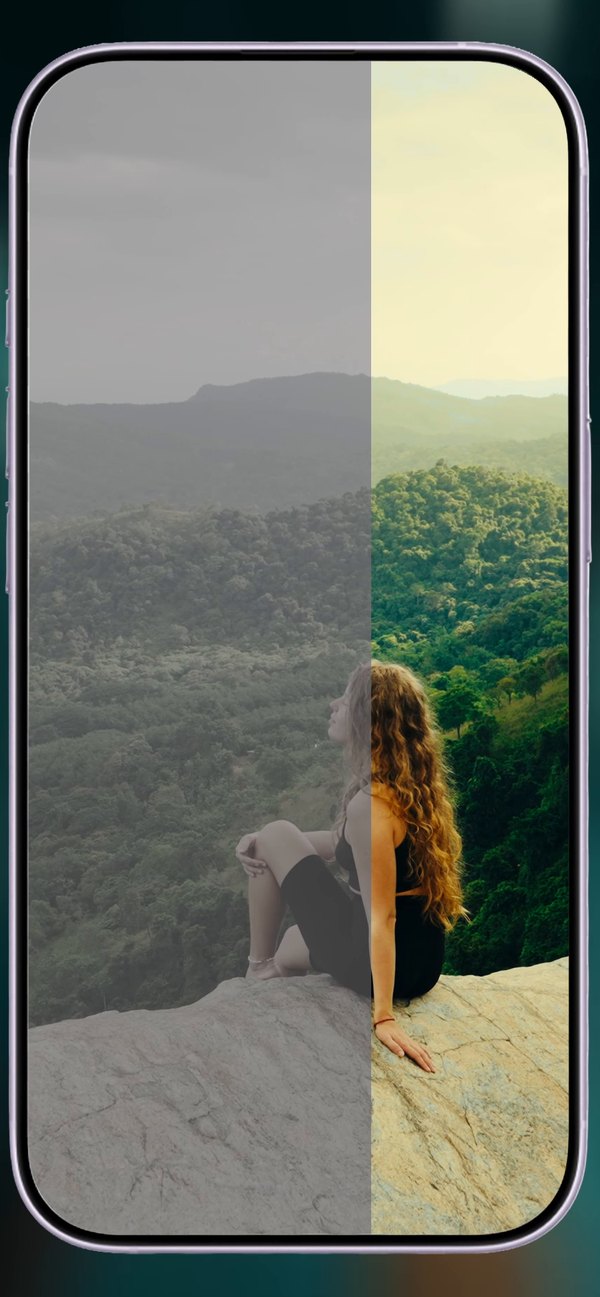
See it in motion
IPHONE CINEMA is ten cinematic looks built and tested on real iPhone footage, with the Apple Log and Apple Log 2 conversions built into every file. Load one in Blackmagic Camera, turn on Record LUT to Clip, and every clip comes out of the phone graded and ready to post.
What’s included
| Cinematic looks | 10, each in three versions |
| Apple Log 2 versions (iPhone 17 Pro and 18 Pro) | conversion built in, one file per look |
| Apple Log versions (iPhone 15/16 Pro) | conversion built in, one file per look |
| Rec.709 versions (any camera) | for non-Log footage |
| Total files | 36 LUTs, 33-point .cube, loads in Blackmagic Camera |
The looks: Pacific (teal and orange), Print 83 (Kodak print film), Nosta (warm nostalgic negative), Verde (Fuji-inspired greens), Golden (golden hour), Nordic (cool scandinavian), Noir (night and neon), Charcoal (dramatic black and white), Sixteen (16mm vintage), Slate (moody desaturated).
$34.95$44.95instant downloadGet IPHONE CINEMA
Before and after
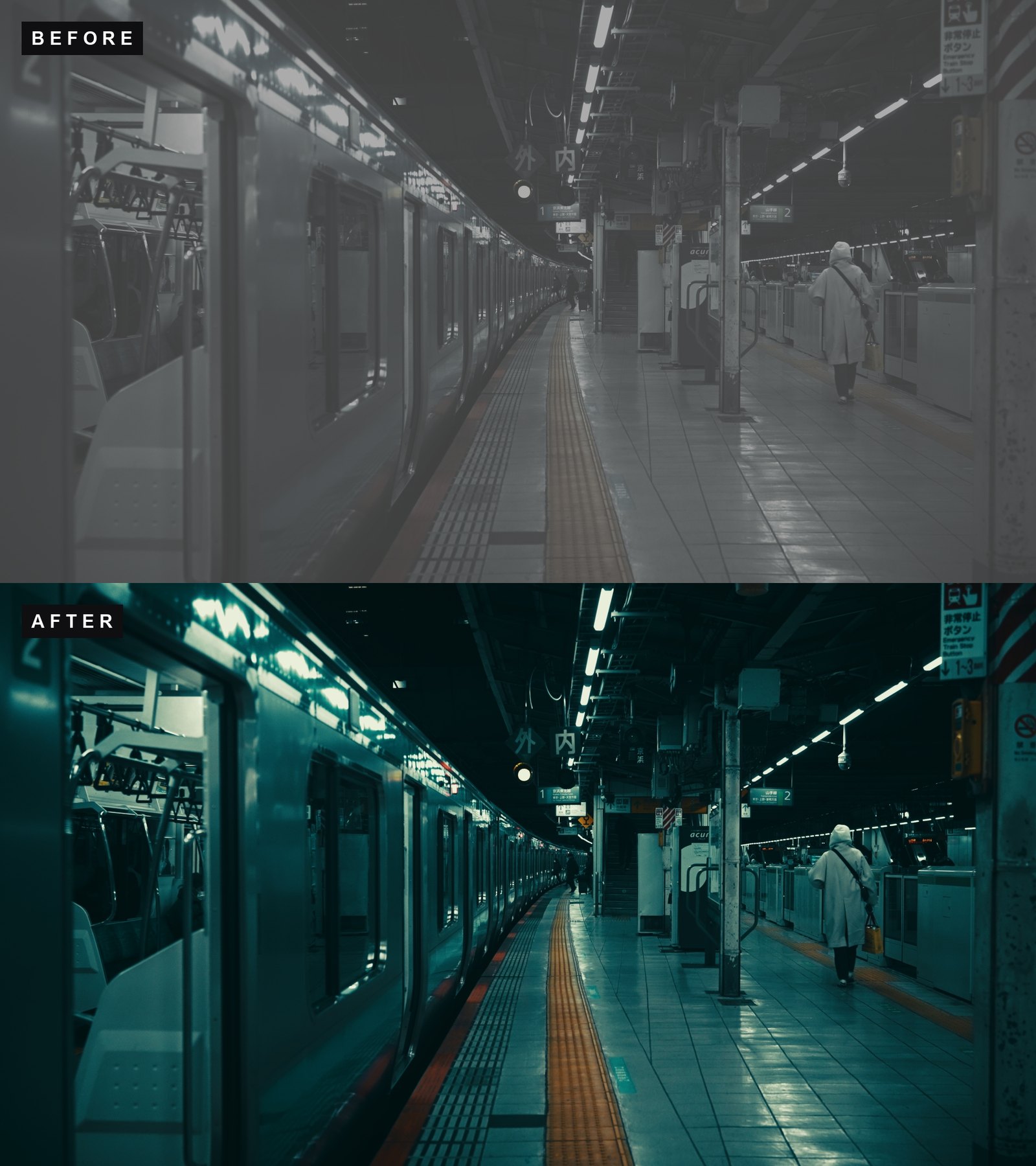 Pacific
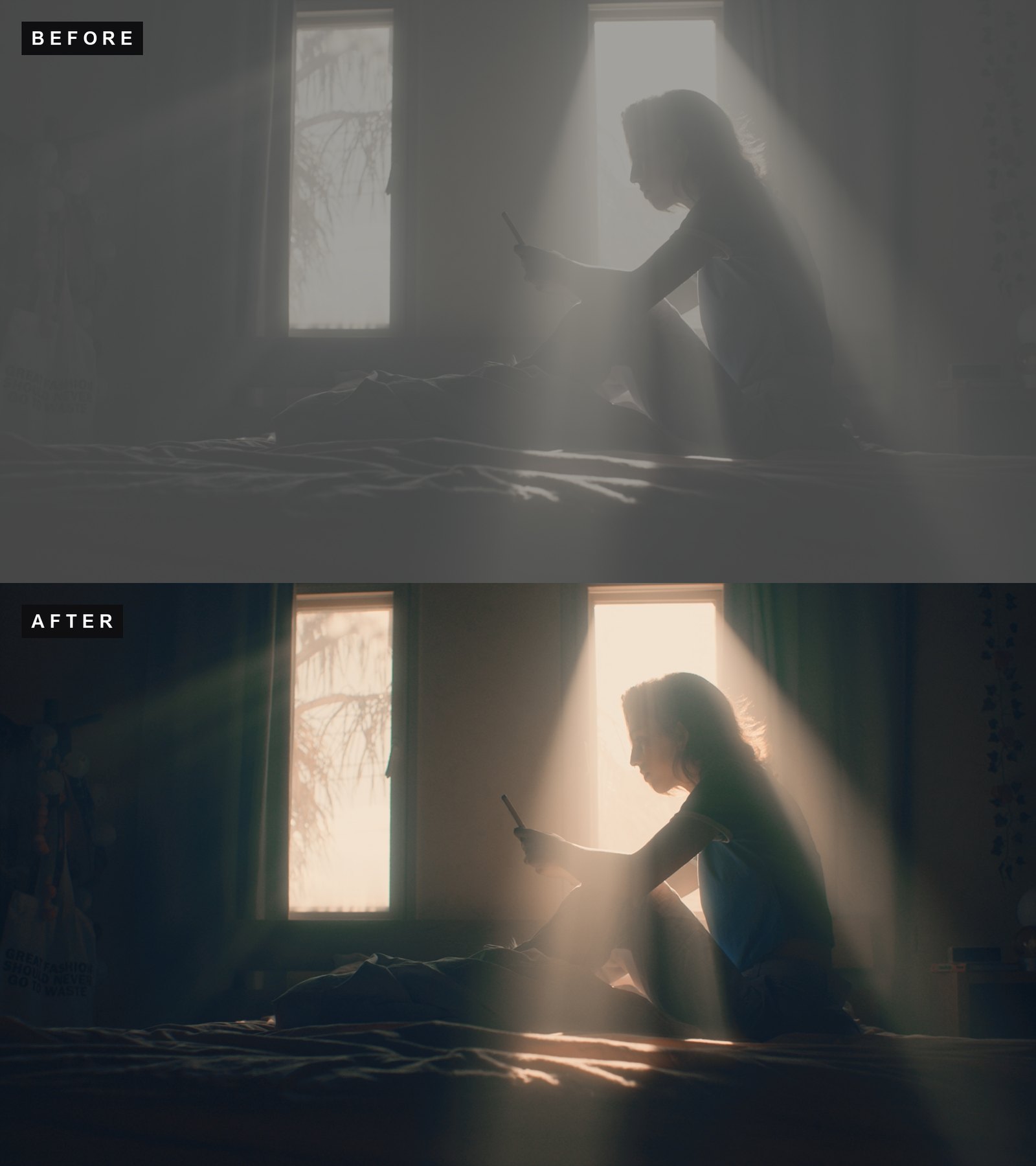 Noir
Noir$34.95$44.95instant downloadGet IPHONE CINEMA
What you need
- An iPhone that records Apple Log: iPhone 15 Pro or newer Pro model.
- The Blackmagic Camera app, free in the App Store.
- A .cube LUT at 17 or 33 points. The app takes both sizes. All Lutcraft LUTs are 33-point and load straight in.
Step 1: set the app to record Apple Log
The looks are built for Log footage, so the app should record Log, also when the look is baked in.
- Open Blackmagic Camera and go to the record settings.
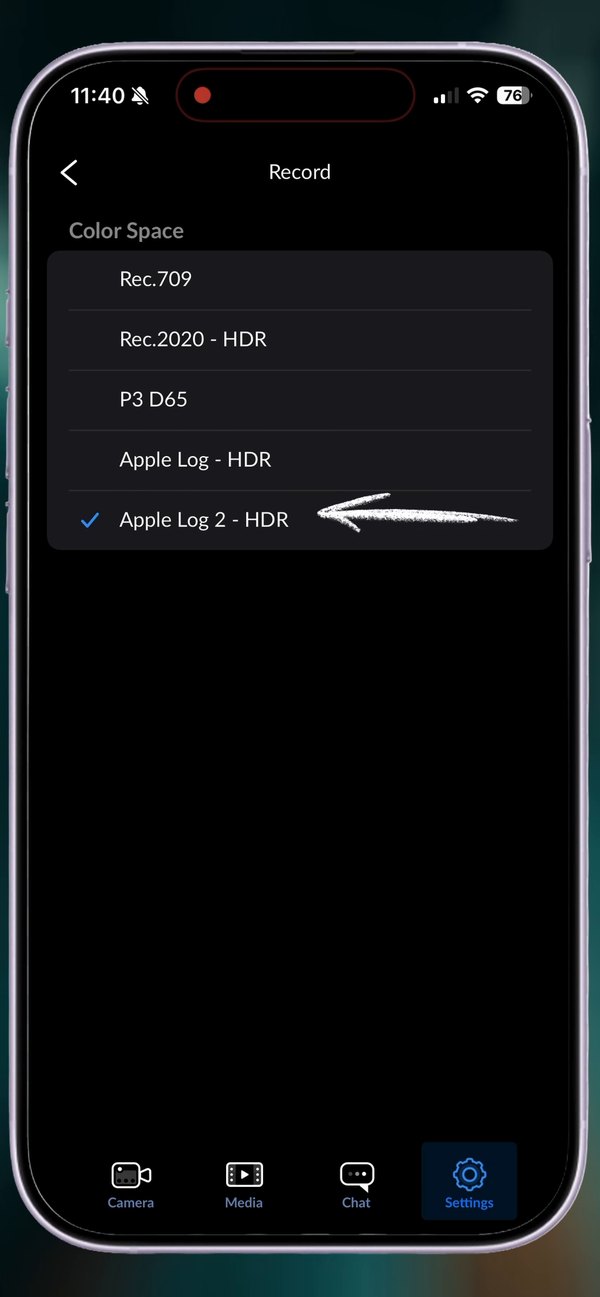
- Set Color Space to Apple Log – HDR (iPhone 15 Pro and 16 Pro) or Apple Log 2 – HDR (iPhone 17 Pro and newer).
- Pick a codec. HEVC keeps files small for social clips, ProRes keeps the most detail. Which options you get depends on your iPhone.
Step 2: import the look LUTs
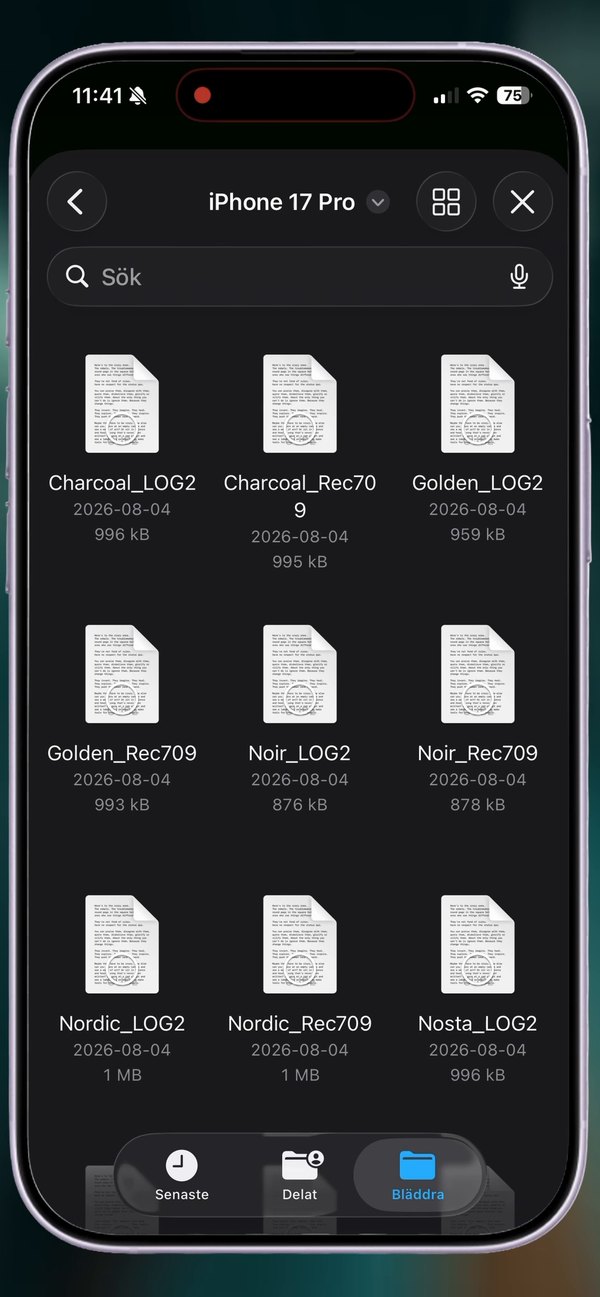
- Save the .cube files to the iPhone, for example in the Files app. Use the version that matches your phone: the LOG2 files for Apple Log 2, the LOG files for Apple Log.
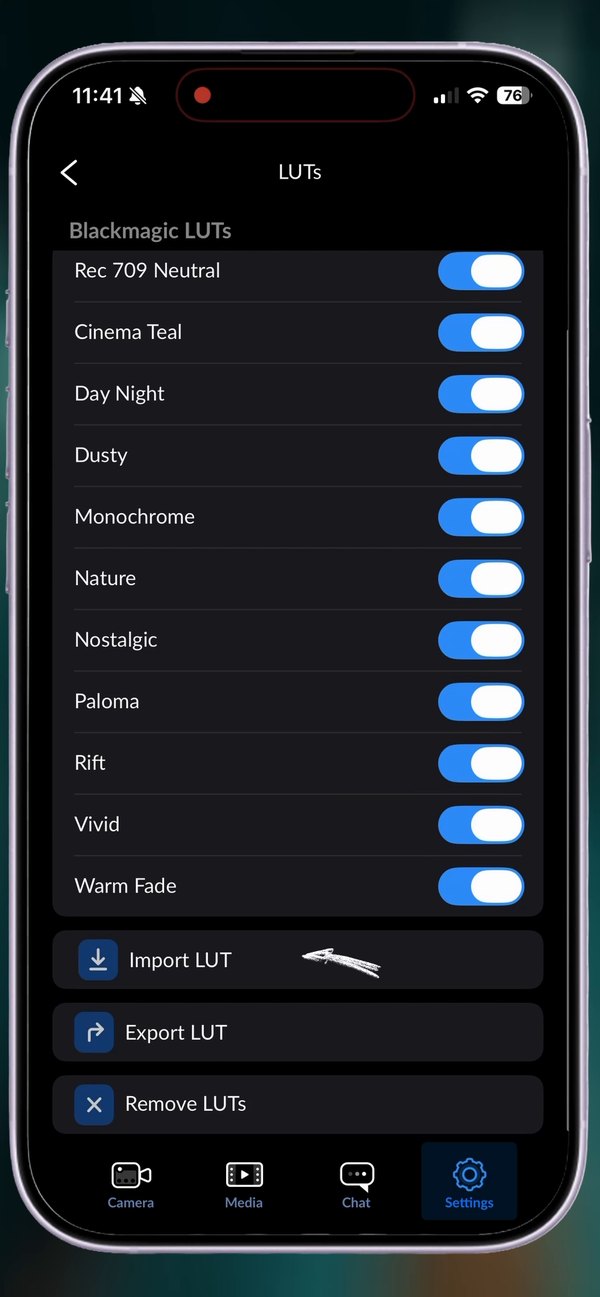
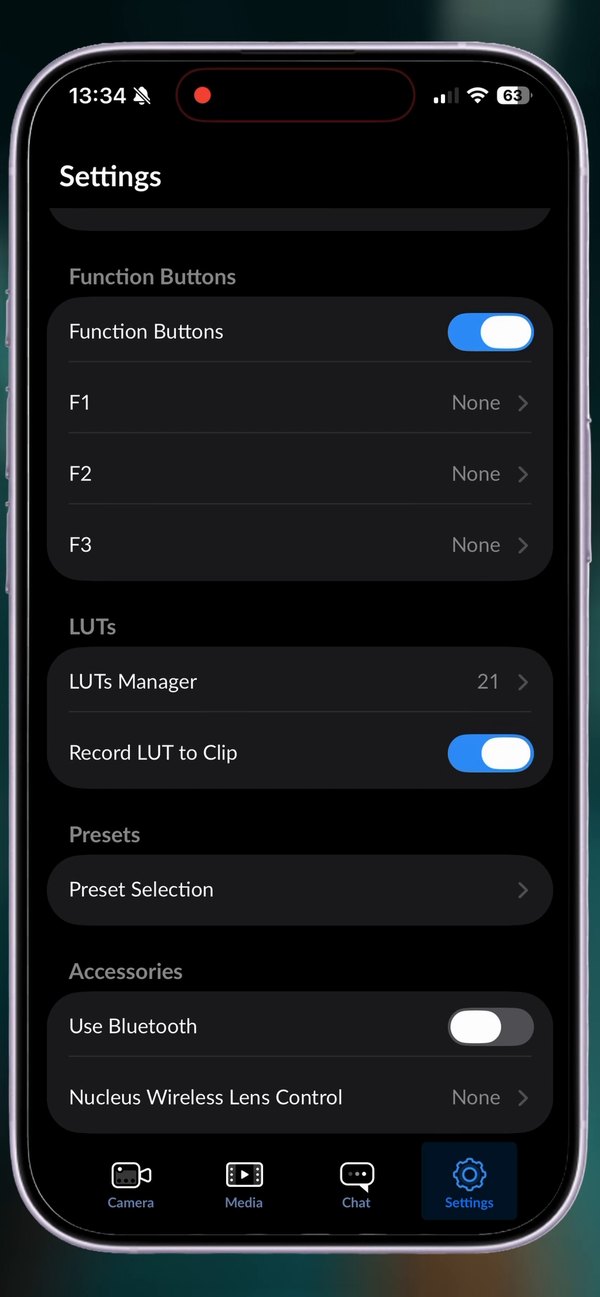
- In Blackmagic Camera, open the Settings tab and tap LUTs Manager.
- Tap Import LUT at the bottom of the list and pick the files. You can select several at once.
Step 3: switch the look on and bake it into the clip
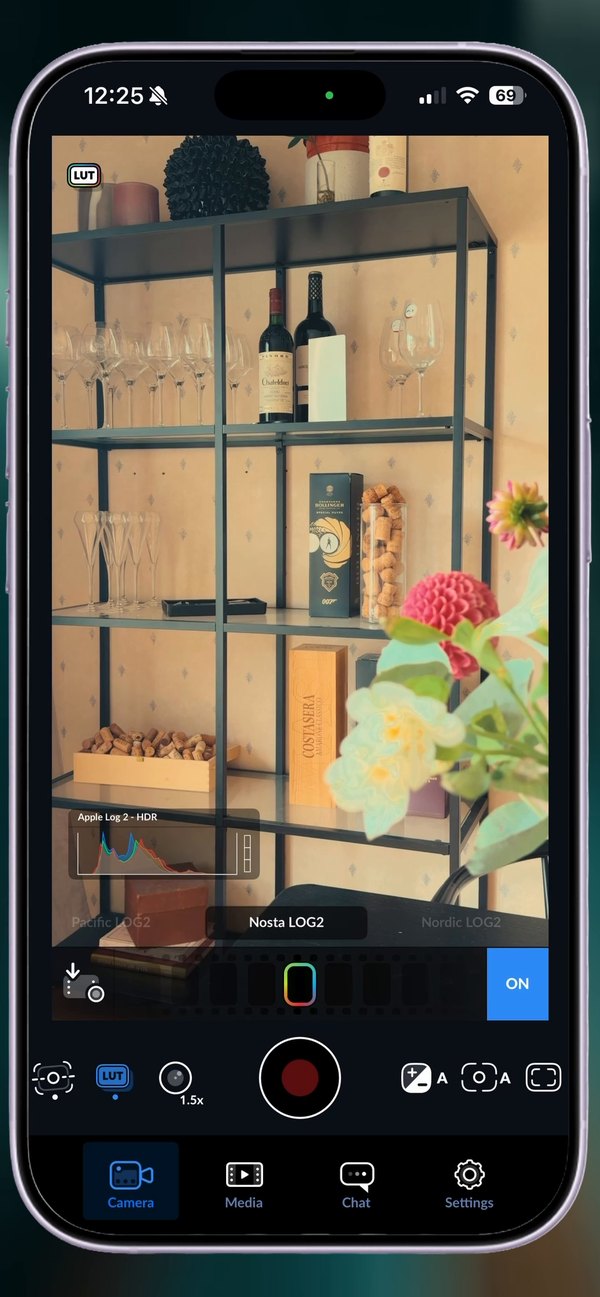
- Go back to the camera, tap the LUT button, swipe to the look you want and switch it on.
- In Settings, turn on Record LUT to Clip. Now the look is recorded into the file, not just shown on screen.
- Film. The clips come out graded and ready to post on Instagram, TikTok or YouTube.
Shooting with an external monitor? The app can send the LUT out over HDMI as well, under the monitor settings for HDMI out.
Want to grade later? Log and a free conversion LUT
If you would rather keep every bit of dynamic range and color it yourself in the edit, do the opposite: record Apple Log, leave Record LUT to Clip off and use a conversion LUT only as a preview. The file stays flat Log and you apply the LUT again in your editor.
- iPhone 15 Pro and 16 Pro (Apple Log): free Apple Log to Rec.709 conversion LUTs.
- iPhone 17 Pro and 18 Pro (Apple Log 2): free Apple Log 2 conversion LUTs. A LUT for the original Apple Log gives the wrong colors on Apple Log 2, see Apple Log vs Apple Log 2.
Then grade in VN Video Editor or LumaFusion on the phone (the CapCut mobile app cannot import custom LUTs), or in DaVinci Resolve, Premiere Pro, Final Cut Pro or CapCut for desktop.
FAQ
Can I post the clips straight from the phone?
Yes. With Record LUT to Clip on, the look is part of the file, so the clip is ready for Instagram, TikTok or YouTube without editing.
Can I change the look afterwards?
Not really. A baked-in look is final, so pick it before you film. If you want to decide later, record Log with Record LUT to Clip off and grade in the edit.
Which LUT size does Blackmagic Camera support?
17-point and 33-point .cube files. All Lutcraft LUTs are 33-point.
My colors look wrong. Why?
Most often the LUT does not match the Log format. iPhone 17 Pro and 18 Pro record Apple Log 2, which needs the Apple Log 2 version of the LUT. A LUT made for the original Apple Log gives skewed colors on it.
Are the conversion LUTs really free?
Yes, completely free. Add them to your cart and check out, no payment details needed. Use them in personal and commercial projects.